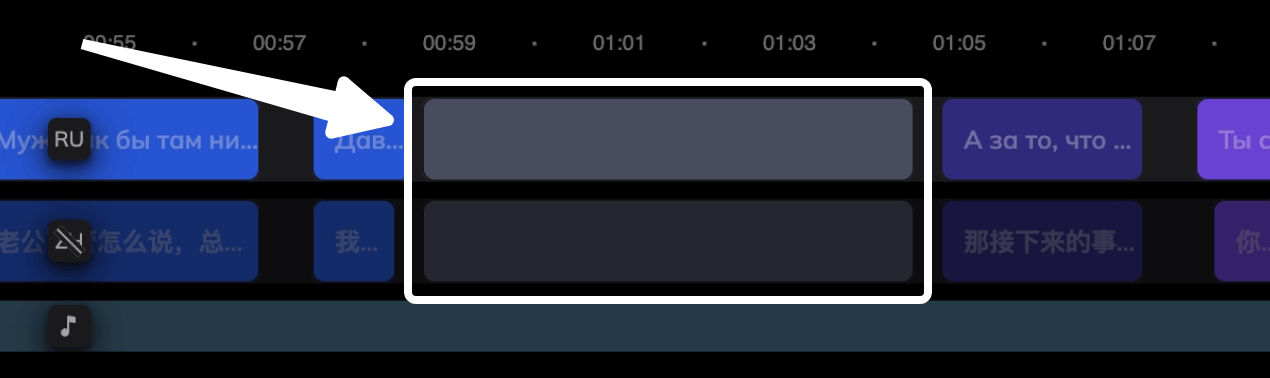
Vozo automatically preserves non-speech sounds, such as shouting, crying, and sound effects, without translating them. These sounds are extracted from the original audio and placed on the dubbed audio track. In the editor timeline, they appear as gray audio clips called non-speech clips.
If a sound is translated when it should be preserved, or speech is preserved when it should be translated, follow the steps below.
Restore original audio for a translated segment
Use the Revert to Original button if Vozo translated a non-speech sound, or if you want to keep a spoken segment in its original language.
- In the text editing area, click the segment you want to restore.
- Click the Revert to Original button to replace its dubbed audio with the original audio.
Translate speech identified as a non-speech clip
If speech that should be translated appears as a gray non-speech clip, delete the clip and add the missing speech as a new segment.
- Delete the gray non-speech clip from the timeline.
- In the text editing area, click Add at the corresponding position and enter the missing original text.
- Click Translate, then review and edit the translation.
- Click Generate Speech.
Last modified on November 25, 2026