

Overview
You can provide your own subtitles or transcript to replace part of the default workflow.- If you upload original subtitles or transcript, the system skips transcription and directly uses your text for translation.
- If you upload translated subtitles, the system skips translation and directly generates dubbing from your text.
How to Use
1
Enable the feature
After uploading your media file in Translate & Dub, click Advanced Settings and turn on Use Existing Subtitles.
2
Choose input method
Select one of the following options:
Option 1: Upload Subtitle File
Use this option if you already have a subtitle or script file. Upload an SRT, VTT, or TXT (SRT-like) file with proper subtitle formatting and accurate timestamps, then choose how to use it:- Use as original script: skip transcription and use it for translation
- Use as final translated script: skip translation and use it for dubbing
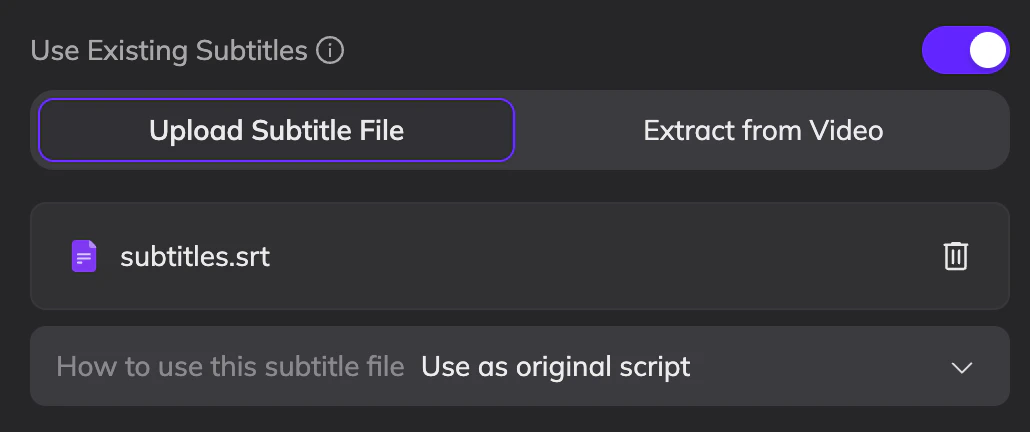
Example
Option 2: Extract from Video
Use this option if subtitles are embedded in the video. Select this option and adjust the box to fully cover the subtitle area.- Only extracts original subtitles and does not support translated subtitles.
- Only supports detecting embedded subtitles in English and Chinese
- Only supports subtitles in a fixed position.
Assign Speakers
If your subtitle or script file includes speaker labels, Vozo will assign speakers during processing based on the speakers you define. This helps preserve speaker identity and ensures more accurate dubbing results.How to Add Speaker Labels
Use the following format to define speakers in your file:- Add a speaker tag at the beginning of each subtitle block
- Use the format:
<v SpeakerName>
Example
Rules and Limitations
- Each subtitle block (cue) supports only one speaker
- The speaker tag must appear at the start of the first line
- All lines in the same block will be assigned to that speaker
- Do not include multiple
<v ...>tags in the same block - If multiple speakers are needed, split them into separate subtitle blocks
- If some subtitle blocks include
<v Speaker>tags while others do not, all unlabeled blocks will be treated as the same additional speaker.
What Happens After Upload
- During processing, Vozo assigns speakers based on your file
- In the editor, speaker names will appear exactly as defined in your file
- This also applies when using the API with subtitle upload