

Start a Project
From the Dashboard, open Voice Studio, then choose how you want to start:- Text to Speech: Choose or clone a voice to generate speech.
- Import Audio/Video: Edit speech, change voice, or add voice-over.
Configure Your Project
If you choose Import Audio/Video, you’ll need to configure the following before processing begins:- Language Spoken: Select the language spoken in your uploaded audio or video, or choose Auto-Detect to let the system identify it automatically.
- Number of Speakers: Choose the number of speakers or use Auto-Detect for automatic speaker separation. Providing the correct number improves accuracy.
If you selected Text to Speech, you can skip this step and begin generating speech directly from your script.
Edit Speech
Generate Speech
- In the Speech section, click Add Segment.
- Enter your text, choose a voice (from the left side of the text), and click the Generate Speech button.

Edit Speech
- Click on the sentence you want to edit.
- After editing, click Generate Speech to generate audio for that sentence.
Rewrite with AI Pilot
- Click a sentence and choose Rewrite with AI in the toolbar.
- Provide a prompt and preview the result.
- To rewrite the entire script, use the AI Pilot button at the bottom right of the Speech section.
Adjust Audio Timing and Speed
Use the timeline at the bottom to fine-tune audio playback.Adjust Timing
Drag the speech audio block left or right to shift its position.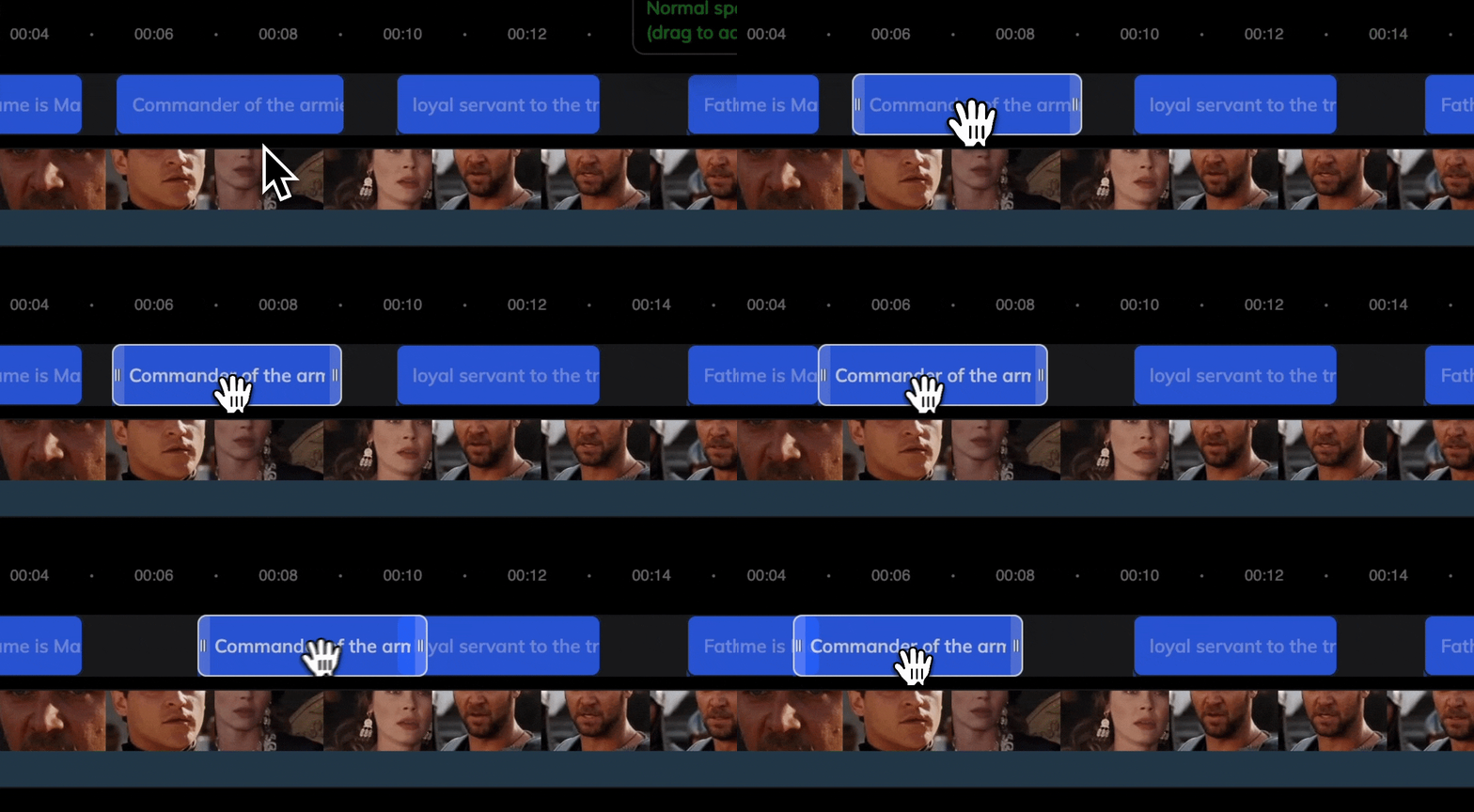
Adjust Speed
Hover over either edge of a speech block to reveal a handle. Drag to stretch or compress for speed control.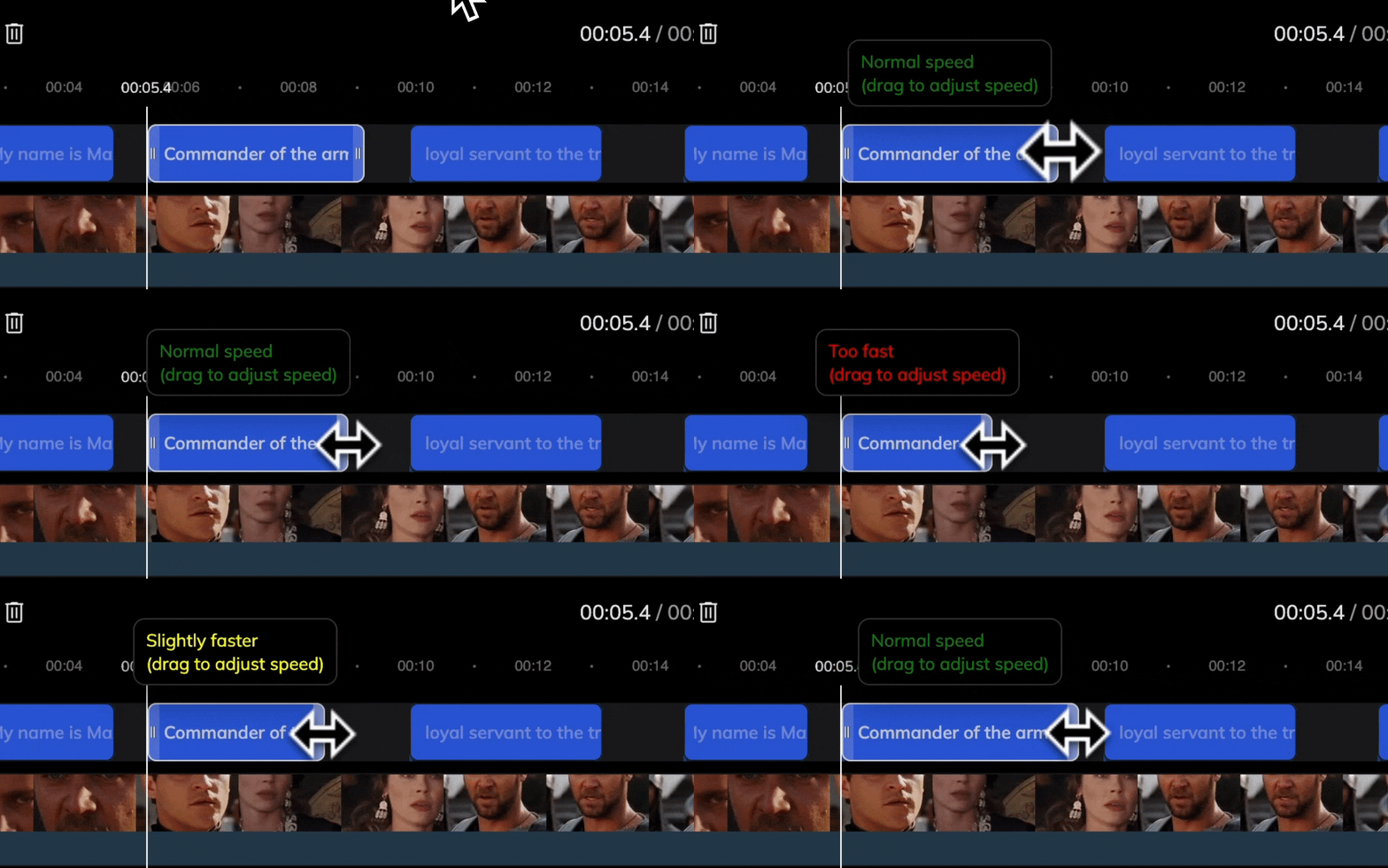
Lip Sync
After generating speech, you can sync lip movements with the new audio.Lip Sync is only available for projects with uploaded video.
- Click the Lip Sync tab on the left.
- Refer to Get Started with Lip Sync for configuration.
- Start lip sync to automatically match mouth movement with the updated voice.
Export and Download
Once you’re satisfied with your edits:- Click Export at the top-right corner.
- After rendering is complete, click Download to get your final audio or video.
FAQ
How are points charged in Voice Studio?
How are points charged in Voice Studio?
Please refer to the Points Usage for AI Tools for detailed pricing rules.