

Translate and Dub the Video
In Dashboard, open AI Translation - Translate & Dub and upload your video. Use these recommendations to configure the project:- Choose an accent for your market: If you have a specific target market, select the matching regional target language and use VoiceNATIVE. For example, to translate into English for sales in South Africa, choose English (South Africa). If you have no specific accent requirements, select a target language without a region and set the dubbing model to Auto.
Vozo clones the original speaker’s voice for dubbing by default.
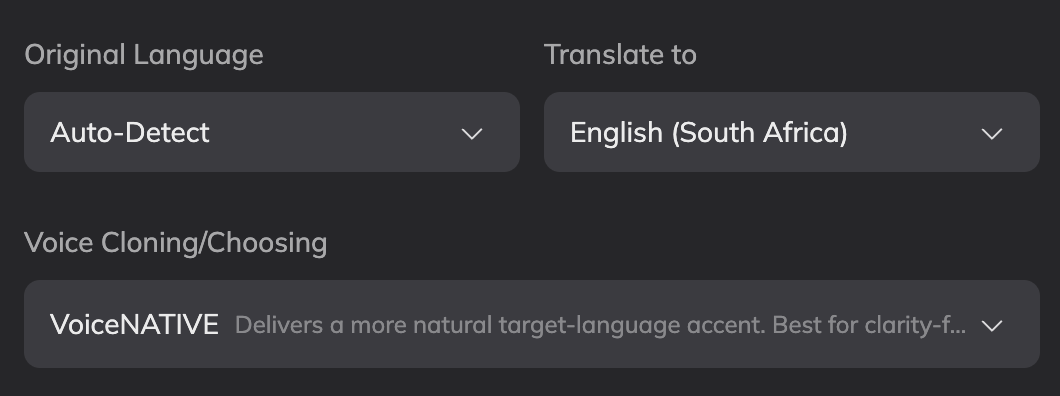
- Choose your subtitle settings:
- Remove and replace existing subtitles: enable Add / Remove Subtitles and select Remove Original & Add New.
- Add subtitles when there are no original subtitles: enable Add / Remove Subtitles and select Add New Subtitles Only.
- No subtitles needed: turn off Add / Remove Subtitles.

- Enable automatic speed alignment: Turn on Auto-Adjust Video Speed for Alignment. Sentences can become longer or shorter in another language. This option adjusts the video speed segment by segment so the product demonstration stays aligned with the translated speech. The video’s speed and total duration may change.

Review the Translation and Dubbing
You can edit the original text and translation in the editor.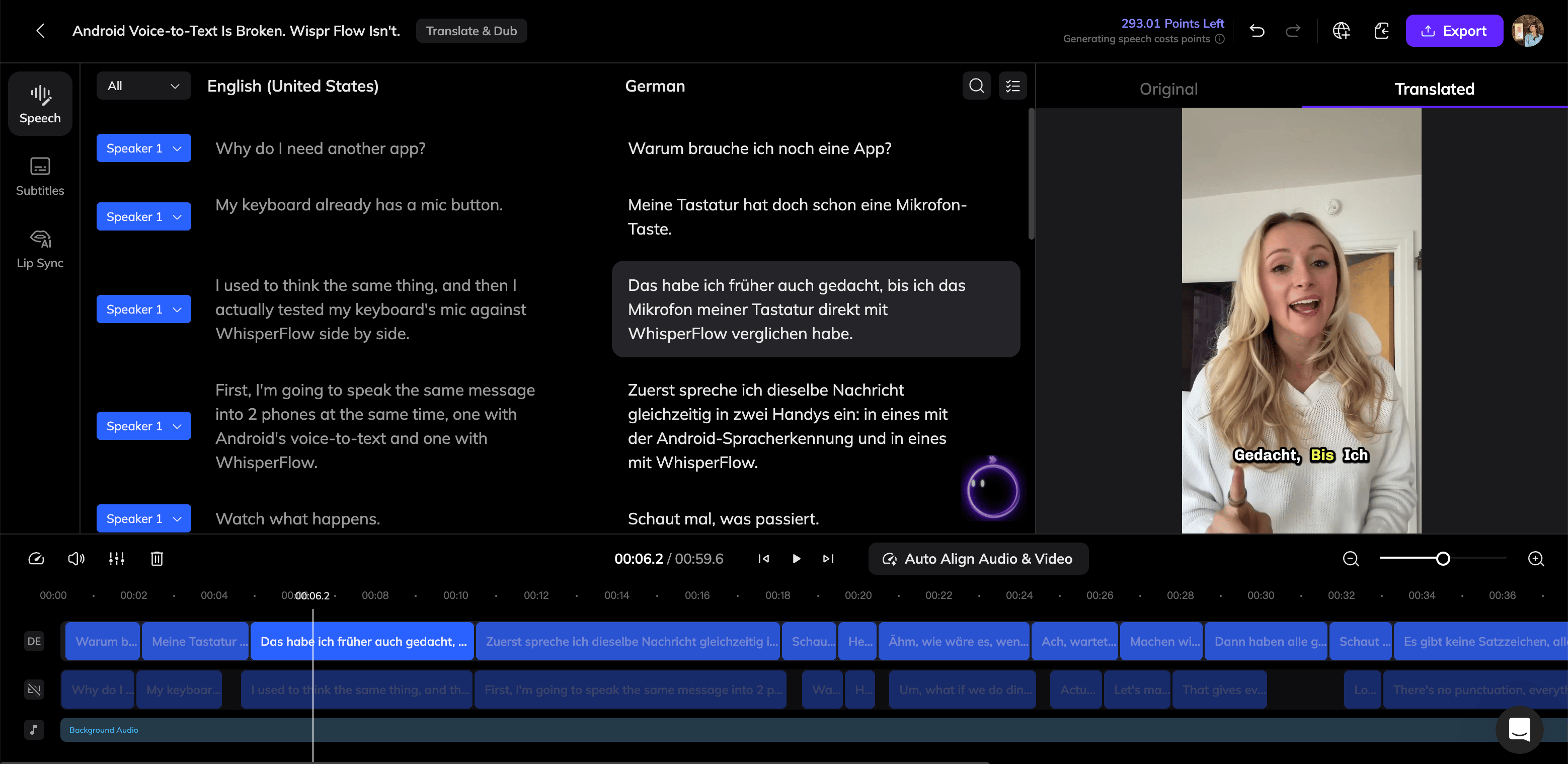
Adjust Subtitle Style
Click Subtitles on the left side of the editor to adjust the subtitle style, and adjust the subtitle position in the preview.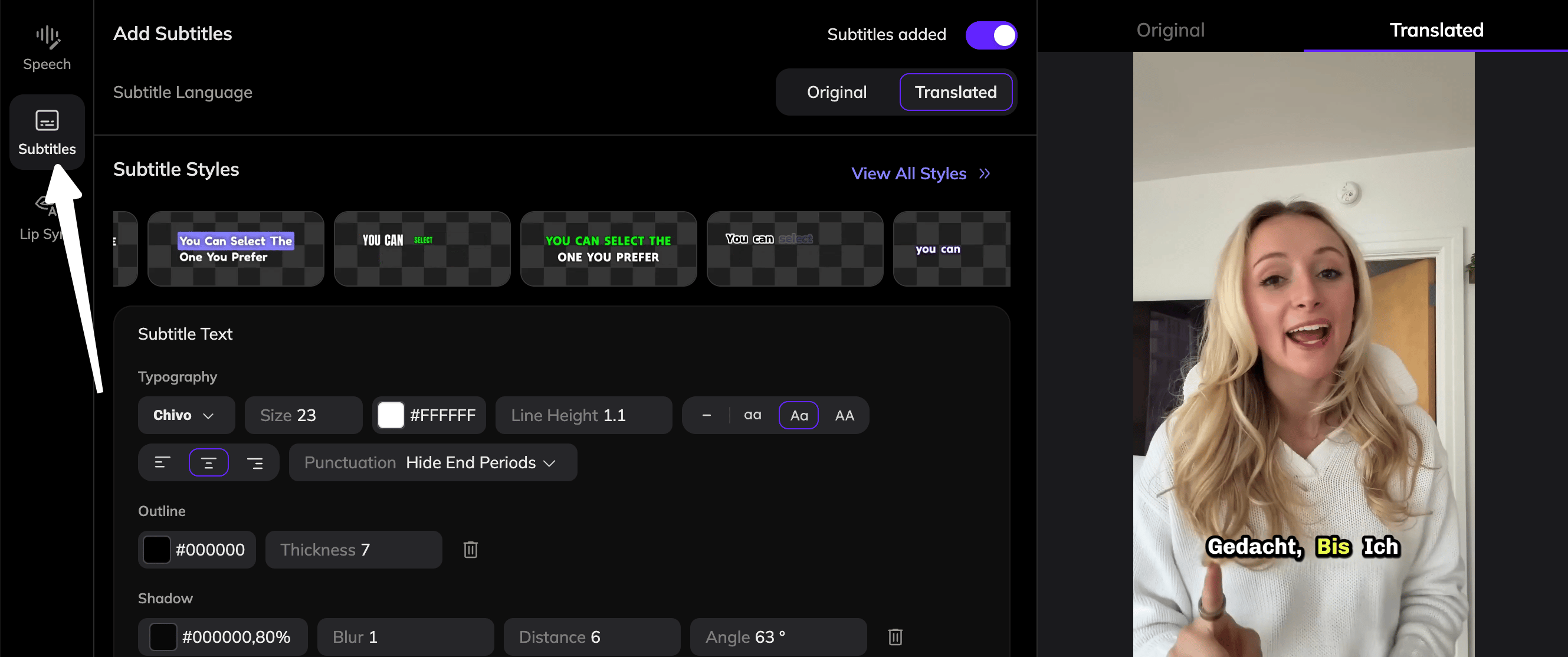
Lip Sync (Optional)
If people appear in the video, use Lip Sync to match their lip movements to the translated speech. How to use it: Click Lip Sync at the bottom of the page or on the left, then select the number of faces. If only one person appears in the video, select Only 1 Face. If multiple people appear, select Auto-Detect (2+). Then click Generate.Lip Sync uses additional points. See point usage rules.
Translate On-screen Text (Optional)
If your video contains text other than subtitles that needs translation, such as stylized text overlays or promotional information, you can use the Visual Translate tool to translate it while preserving the text’s style, layout, and animation. How to use it: After finishing dubbing and lip sync (optional), export and download the video, then upload it to Visual Translate for processing. For details, see Visual Translate: Get Started.Visual Translate uses additional points. See point usage rules.
FAQ
How much does it cost to translate product videos?
How much does it cost to translate product videos?
See the point usage rules for each feature’s point consumption and the Pricing page for plan prices. For high-volume or enterprise needs, contact our business team at bd@vozo.ai.
What if I forgot to enable original subtitle removal?
What if I forgot to enable original subtitle removal?
You cannot remove the original subtitles afterward in the existing project. Upload the video again and submit a new project with Add / Remove Subtitles enabled and Remove Original & Add New selected.
Will TikTok or other platforms label my video as AI-generated?
Will TikTok or other platforms label my video as AI-generated?
By default, Vozo does not add an AI-generated marker to the exported video’s metadata. If you need one, contact bd@vozo.ai.Labeling is determined by the platform. If the original video was not AI-generated, it generally will not be labeled as AI-generated by the platform.
I have many videos. Can I process them in batches or automate the workflow?
I have many videos. Can I process them in batches or automate the workflow?
Vozo supports bulk uploading, API, and CLI. Choose the option that fits your workflow:
- Bulk uploading: Studio plans and above support uploading multiple files at once to create translation projects in batches. See Bulk Uploading.
- API: Suited to developers and users with a technical team who want to integrate video translation into their own product or workflow, automatically submit jobs, and retrieve results. See API Get Started.
- CLI: Suited to users who want an AI agent to handle videos automatically without writing code. Use natural-language requests to create projects in batches, check progress, and download results. See the Skills/CLI guide.