

Upload Your Video
In Dashboard, open AI Translation - Translate & Dub. You can upload a video file, upload an audio file, or paste a YouTube URL. We recommend uploading a video or pasting its YouTube URL. Having the video available makes it easier to review how the translated speech fits the visuals and check synchronization.You can upload a complete video with speech, background music, and sound effects. Vozo automatically separates speech from background audio and segments sound effects.If you need more control over audio separation, upload a version of the video containing only speech. After dubbing and exporting, mix the translated audio with your background music and sound effects.
Configure Your Project
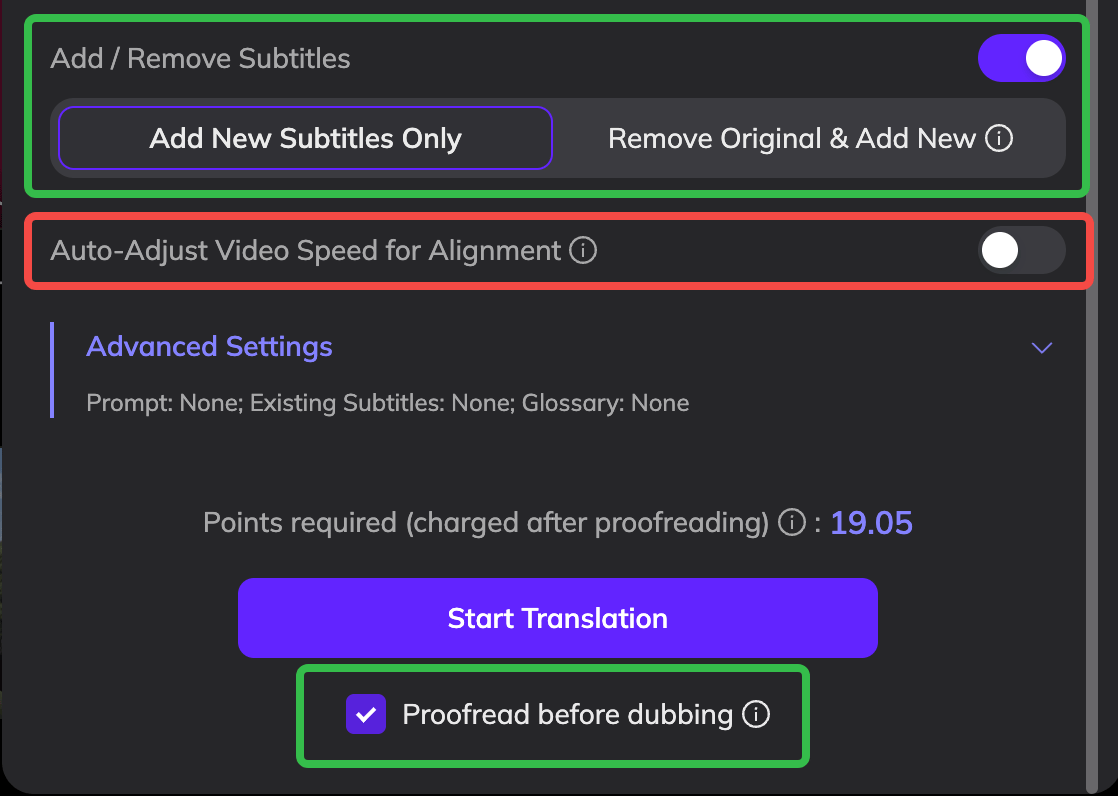
After uploading your video, configure your project as follows.- Recommended: Enable Subtitles for SRT Export Turn on Add / Remove Subtitles and select Add New Subtitles Only. This makes it easier to download the SRT subtitle file later.
- Important: Do Not Enable “Auto-Adjust Video Speed for Alignment” Your translated audio must match the original video on YouTube, so the video’s speed and timing must stay unchanged. Make sure you do not enable this option.
-
Recommended: Check “Proofread before dubbing”
For careful review, check Proofread before dubbing below Start Translation. Vozo translates first; review and edit the original text and translation, then click Start Dubbing. Dubbing points are charged only then, helping you avoid extra points for regenerating speech to fix translation errors. If you leave it unchecked, users on all plans can still edit the translation in the dubbing editor, but updating generated speech uses additional points.This feature is only available on the Studio plan and above.
Review the Translation and Dub
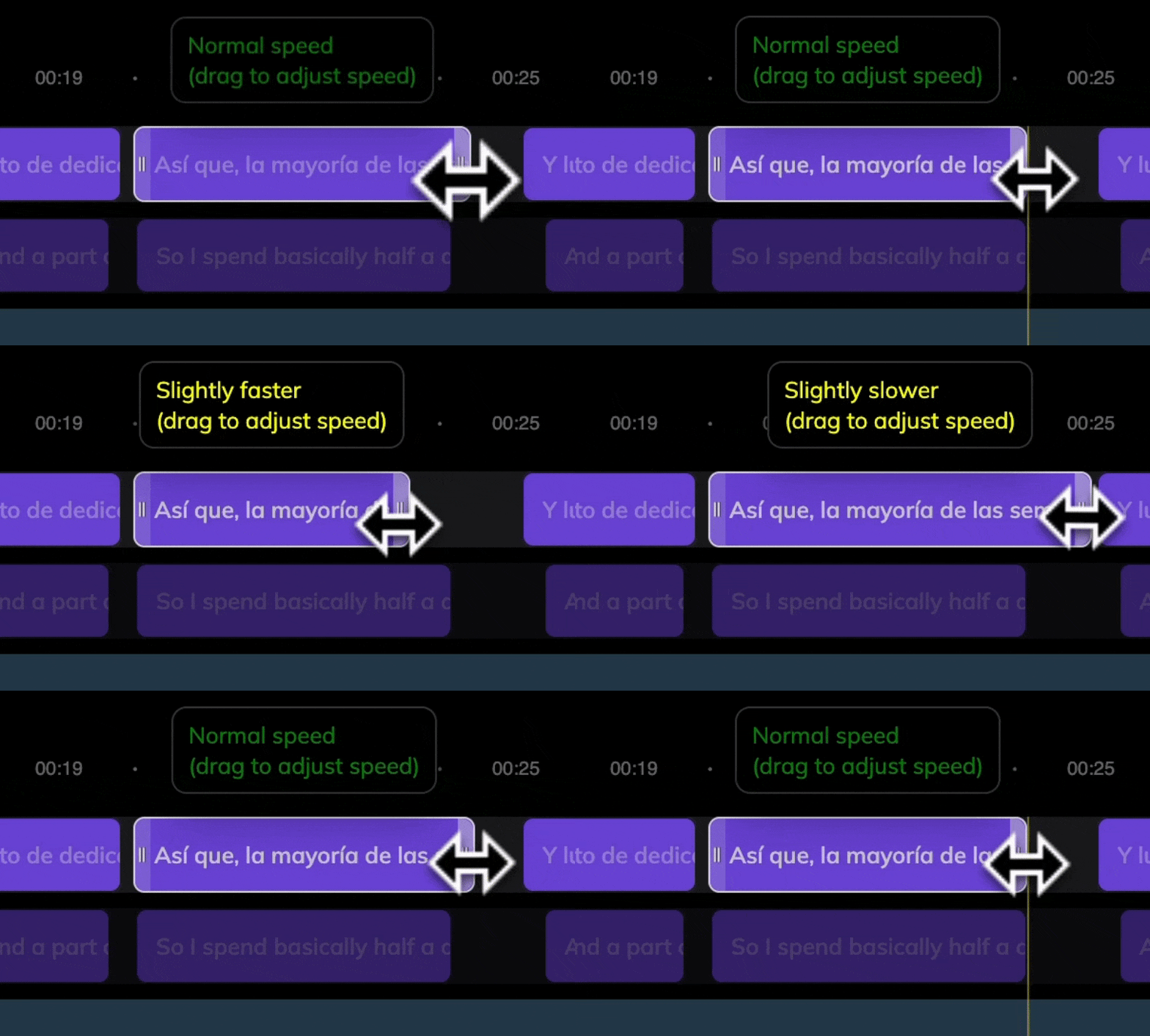
After translation is complete, you can review the translation and dubbing in the editor. Due to differences between languages, translated sentences may become longer or shorter, causing the dubbed speech to differ in duration from the original. Vozo automatically adjusts each sentence’s speech speed. If the timing still does not match well, you can make the following manual adjustments:- Adjust an Audio Clip’s Speed: On the timeline, drag the edge of a translated audio clip to stretch or shorten it. This makes the speech faster or slower. Make small adjustments.
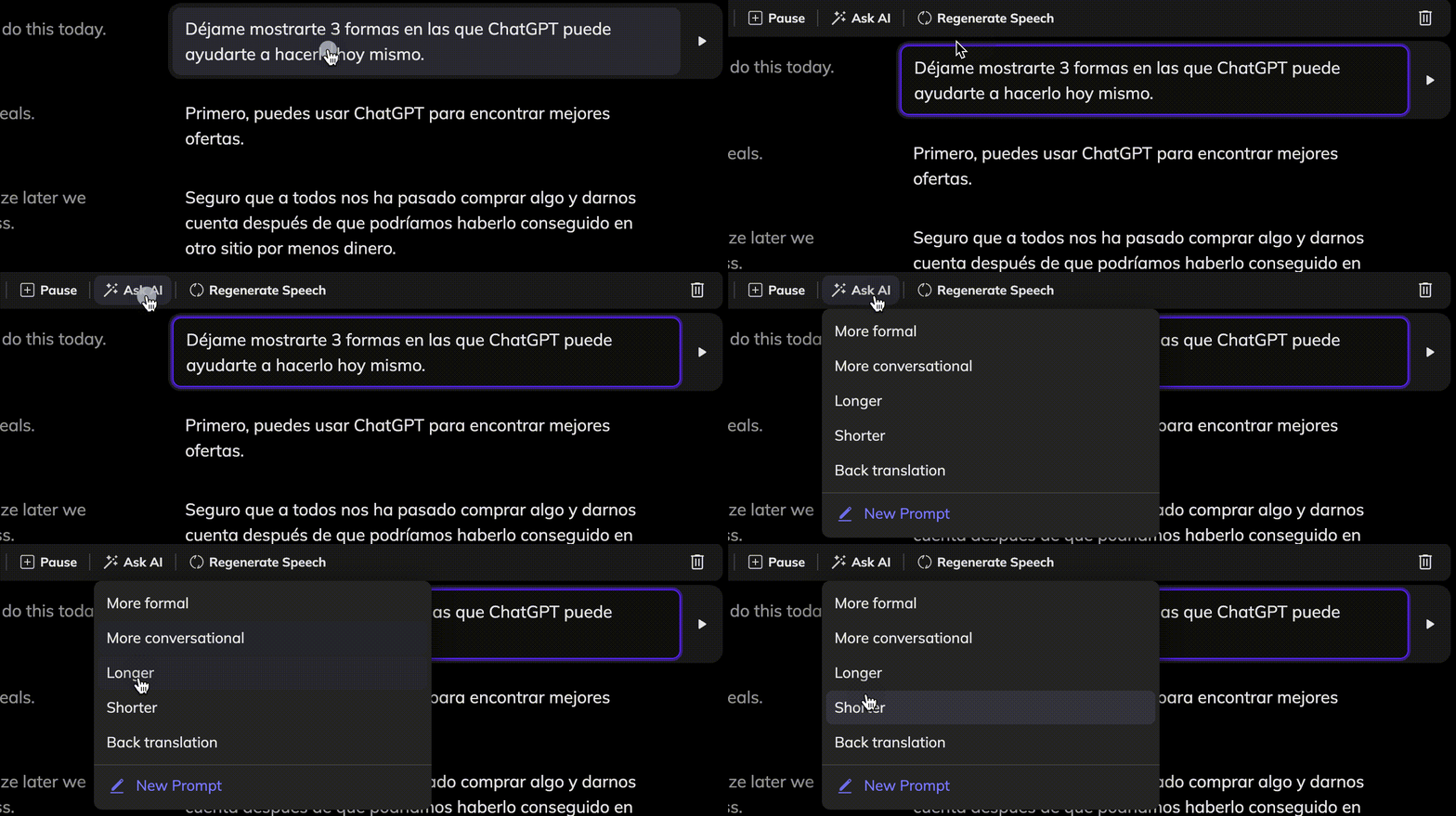
- Rewrite a Sentence to Be Shorter or Longer: Select a sentence and click Ask AI. Ask it to shorten or lengthen the translation while preserving the meaning.
Export the Translated Audio
Click Export in the top-right corner, then select Audio → Translated Audio. Choose WAV for higher audio quality than MP3.Download SRT Subtitles
Keep subtitles enabled in the editor before exporting. When subtitles are enabled, Vozo splits the downloaded SRT into cues based on how much subtitle text fits in the current preview. If too much or too little text appears at once, click the subtitles in the video preview, drag the right handle to adjust the subtitle box width, then preview again to check the amount of text.
If subtitles are disabled, the SRT is split by translation segment, usually at sentence boundaries. A long segment may then appear as several lines of text at once on YouTube. Enable subtitles and adjust their width before downloading to control how the text is split.
Translate into More Languages

This feature is only available on the Studio plan and above.
Upload to YouTube
Sign in to YouTube Studio on a computer to add the exported audio tracks and subtitles to your original YouTube video:- Upload multilingual audio tracks: Select Languages in the left menu, open the original video, and use Add language to select a target language. Next to Dub, click Add, choose the matching audio file, then click Publish. Your channel needs access to YouTube advanced features. See YouTube’s official guide to adding multilingual features.
- Upload SRT subtitles: Select Subtitles in the left menu, open the same video, add the target language, and click Add under Subtitles. Choose Upload file, select the matching SRT file, and follow the prompts to save. See YouTube’s official guide to adding subtitles.
FAQ
Can I use Export to YouTube to add multilingual audio tracks directly?
Can I use Export to YouTube to add multilingual audio tracks directly?
Export to YouTube in the export dialog uploads a video to YouTube. It cannot add a translated audio track to an existing YouTube video because YouTube does not provide an API for uploading additional audio tracks. Download the translated audio and SRT files, then upload them manually in YouTube Studio.
I have many videos. Can I process them in batches or automate the workflow?
I have many videos. Can I process them in batches or automate the workflow?
Vozo supports bulk uploading, API, and CLI. Choose the option that fits your workflow:
- Bulk uploading: Studio plans and above support uploading multiple files at once to create translation projects in batches. See Bulk Uploading.
- API: Suited to developers and users with a technical team who want to integrate video translation into their own product or workflow, automatically submit jobs, and retrieve results. See API Get Started.
- CLI: Suited to users who want an AI agent to handle videos automatically without writing code. Use natural-language requests to create projects in batches, check progress, and download results. See the Skills/CLI guide.