> ## Documentation Index
> Fetch the complete documentation index at: https://www.vozo.ai/docs/llms.txt
> Use this file to discover all available pages before exploring further.
# Export and Import a Text File
> Learn how to export and import text in Visual Translate.
This feature allows you to export Visual Translate text as a file, review or edit it externally, and import it back to update translations in bulk.
## Export Text
You can export a file containing the **original text**, **timestamps**, and **translated text**.
There are two ways to download the file:
1. Click **Export**, then select **Original & Translated Text** in the popover menu.
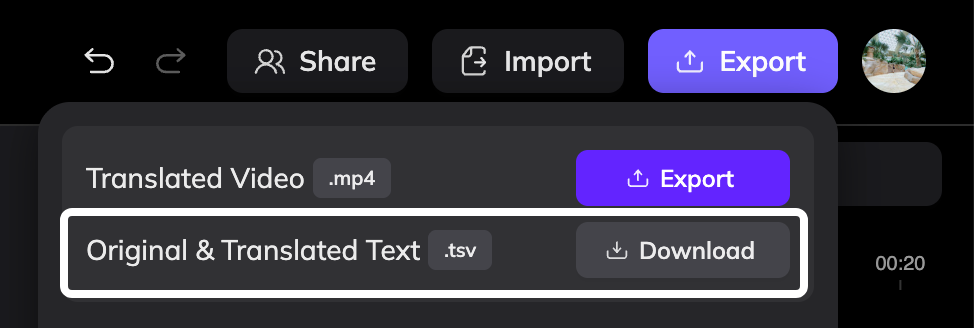 2. Click **Import**, then download the TSV file from the import dialog.
The downloaded file includes:
* Original text
* Start and end timestamps
* Translated text
After exporting the file, you can review and modify the translations as needed.
## Edit the File
After reviewing or editing the translations, save the file as **TSV** or **TXT** format.
Keep the file structure unchanged. Modifying the structure may cause the import to fail.
## Import the File
In the editor, click **Import** in the top-right corner.
Upload the edited **TSV** or **TXT** file.
2. Click **Import**, then download the TSV file from the import dialog.
The downloaded file includes:
* Original text
* Start and end timestamps
* Translated text
After exporting the file, you can review and modify the translations as needed.
## Edit the File
After reviewing or editing the translations, save the file as **TSV** or **TXT** format.
Keep the file structure unchanged. Modifying the structure may cause the import to fail.
## Import the File
In the editor, click **Import** in the top-right corner.
Upload the edited **TSV** or **TXT** file.
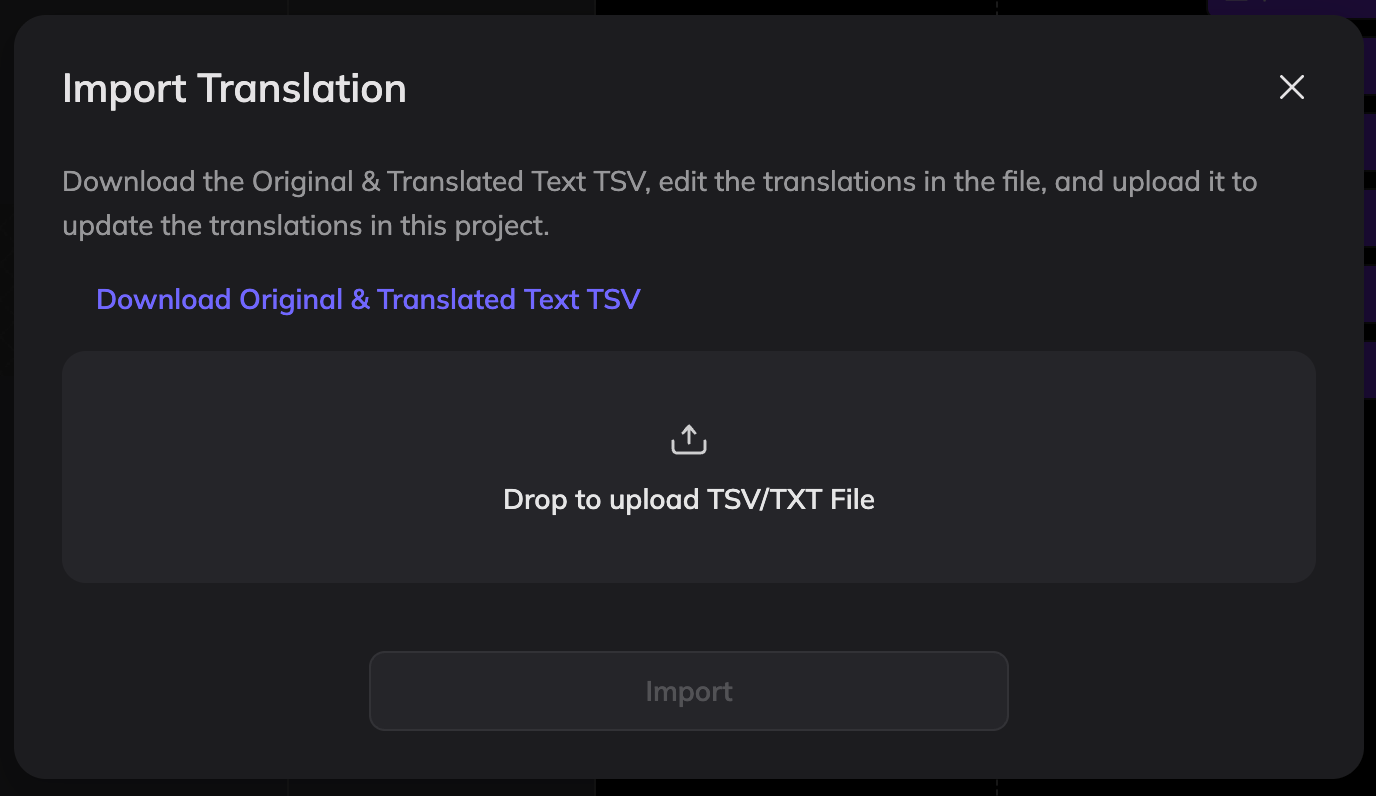 The system will update the project based on the file content.
## Import Requirements
### Timestamp Format
The **end time** must be later than the **start time**, and the timestamp format must remain valid.
### Project Status Restrictions
Importing is not allowed in the following situations:
* Some segments are processing **Retranslating**
* Some segments are in **Pending Regenerate** status
Please wait until processing is complete before importing the file.
## How the System Updates Your Project
After importing the file, the editor will update the project according to these rules:
1. **Update translations**\
If the translated text is modified, the system updates the translation.
2. **Update original text**\
If the original text is modified, the system updates the original text.
3. **Update timestamps**\
If the timestamps are modified, the system updates the segment timing.
4. **Add new entries**\
If new rows are added, the system creates new text segments using the default style. You can adjust the style in the editor.
5. **Deleted rows**\
If rows are removed from the file, the corresponding text will not be deleted automatically. To remove text, delete it manually in the editor.
The system will update the project based on the file content.
## Import Requirements
### Timestamp Format
The **end time** must be later than the **start time**, and the timestamp format must remain valid.
### Project Status Restrictions
Importing is not allowed in the following situations:
* Some segments are processing **Retranslating**
* Some segments are in **Pending Regenerate** status
Please wait until processing is complete before importing the file.
## How the System Updates Your Project
After importing the file, the editor will update the project according to these rules:
1. **Update translations**\
If the translated text is modified, the system updates the translation.
2. **Update original text**\
If the original text is modified, the system updates the original text.
3. **Update timestamps**\
If the timestamps are modified, the system updates the segment timing.
4. **Add new entries**\
If new rows are added, the system creates new text segments using the default style. You can adjust the style in the editor.
5. **Deleted rows**\
If rows are removed from the file, the corresponding text will not be deleted automatically. To remove text, delete it manually in the editor.