> ## Documentation Index
> Fetch the complete documentation index at: https://www.vozo.ai/docs/llms.txt
> Use this file to discover all available pages before exploring further.
# Get Started
> Learn how to translate your video subtitles and customize them using Vozo's Translate Subtitles tool.
## Create a Project
To get started, navigate to your **Dashboard** and click on **AI Translation - Translate Subtitles**. This will open the upload dialog, where you can drag and drop your video files or click to upload. You can also paste a link to upload your video.
Before processing your video, you’ll need to configure a few project settings:
1. **Original Language**: Select the original language of your video.
2. **Translated to**: Choose the target language you want your video translated into.
3. **Subtitle Display**: Select whether to add **Translated Subtitles** only or **Original + Translated bilingual subtitles**.
4. **Remove Original Subtitles:** Turn this on to remove any original subtitles from the video.
5. **Advanced Settings** (Optional):
* **Translation Prompt**: Choose a preset or enter tone, background, or language style preferences to guide translation.
* **Glossary**: Select one or more glossaries to define how key terms should be translated. Only available for **Studio** and higher-tier plans. For more details, see [Glossary](/docs/common/glossary).
* **Use Existing Subtitles:** Toggle this if your video already has accurate subtitles. You can upload a subtitle file or extract embedded subtitles from the video. Extraction currently supports English and Chinese only.
## Edit Subtitles
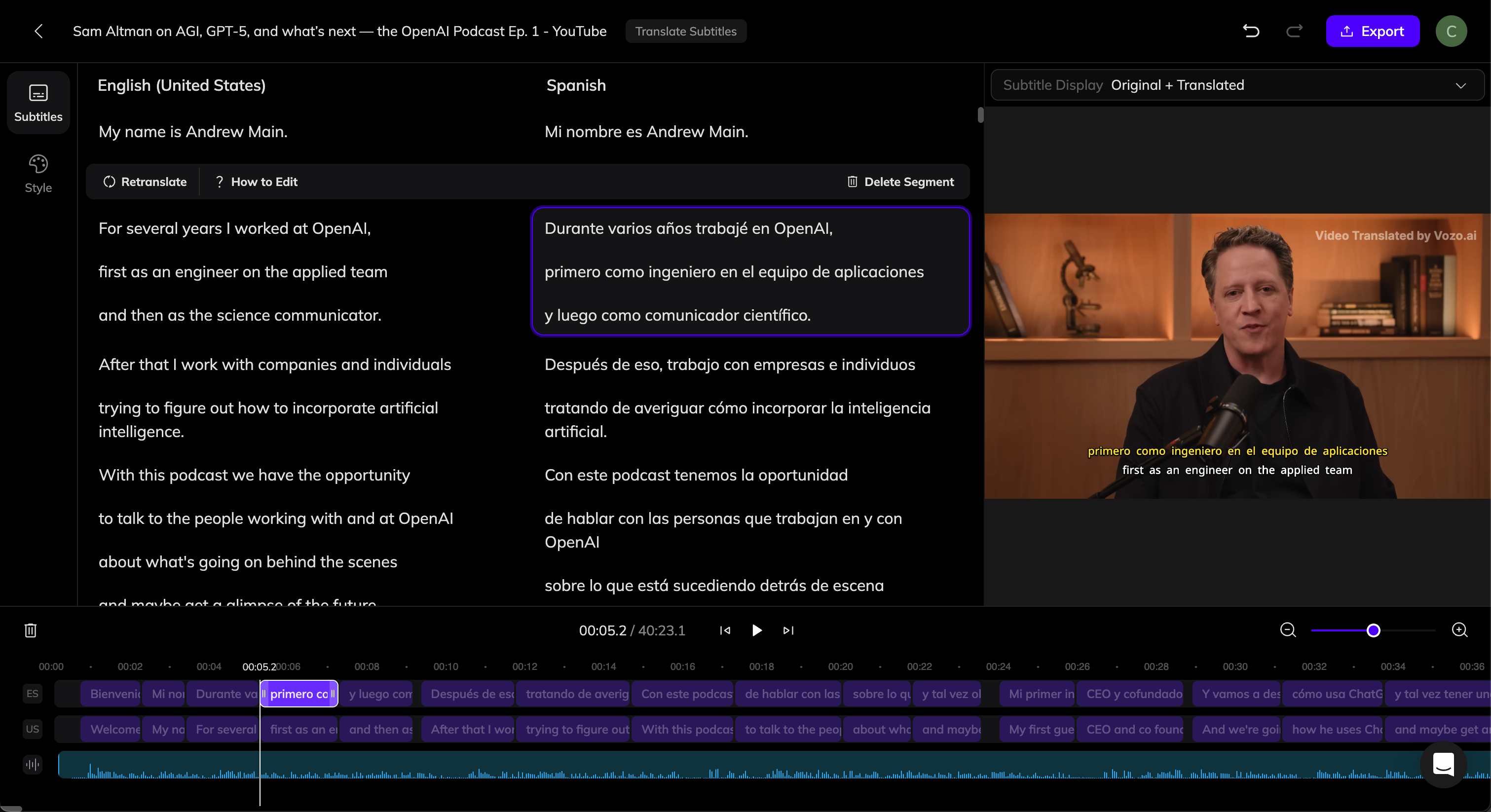
Once the translation is complete, you can review and edit subtitles in Vozo's subtitle editor.
If any translation errors occur due to incorrect source recognition, click the problematic original text, make your edits, and then click the **Retranslate** button above the segment to generate a new translation.
You can also manually edit the translated text as needed.
 ## Modify Line Breaks
Vozo automatically splits lines based on semantics. You can further split, merge, insert, or delete lines as you prefer, similar to editing a document:
* **Split Line**: Click anywhere in a sentence and press **Enter** to split it into two lines at the cursor position.
* **Merge Lines**: Click at the start of a sentence and press **Backspace** to merge it into the previous line.
* **Insert New Line**: Click at the start or end of a sentence and press **Enter** to create a new line. Enter text to add subtitles.
* **Delete Line**: Select the entire sentence and press **Backspace** to remove the text, then press Backspace again to delete the line itself.
## Adjust Subtitle Timing
On the timeline, you can drag any subtitle clip to adjust its display time.
## Subtitle Display
Above the video preview, you can choose the subtitle display mode:
* **Translated Subtitle Only**: Show only translated subtitles.
* **Original + Translated**: Display subtitles in both languages.
## Customize Subtitle Style
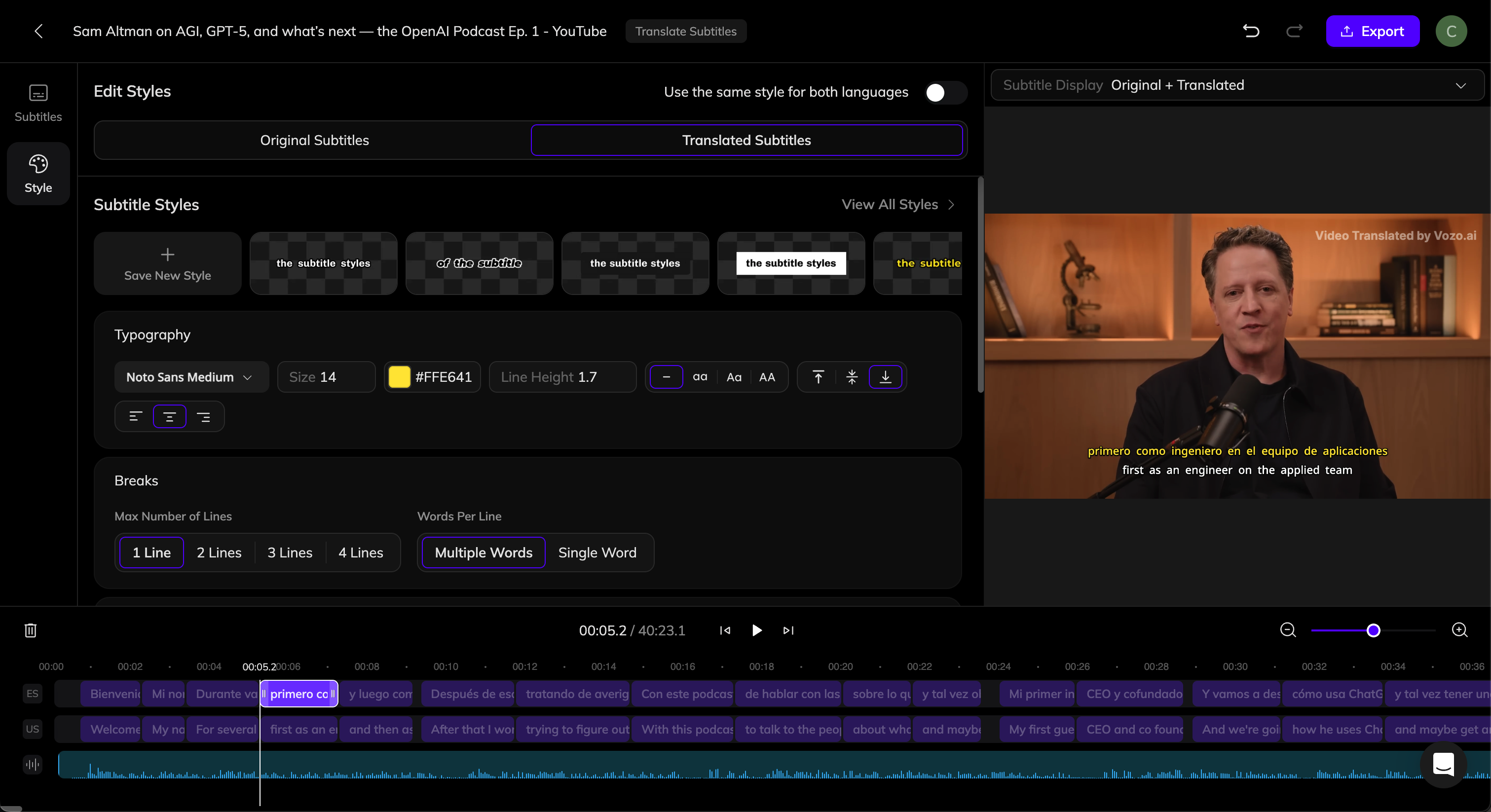
Click the **Style** tab on the left panel. Here you can customize subtitle styles.
If **Subtitle Display** is set to **Original + Translated**, you can individually customize the **Original Subtitles** and **Translated Subtitles**, or set them to **Use the Same Style**.
If you want to change the maximum number of lines (for example, switch from 1 line to 2 lines), adjust the **Max Number of Lines** setting. Vozo will automatically re-break lines based on semantics. Other style changes will not trigger re-breaking.
## Modify Line Breaks
Vozo automatically splits lines based on semantics. You can further split, merge, insert, or delete lines as you prefer, similar to editing a document:
* **Split Line**: Click anywhere in a sentence and press **Enter** to split it into two lines at the cursor position.
* **Merge Lines**: Click at the start of a sentence and press **Backspace** to merge it into the previous line.
* **Insert New Line**: Click at the start or end of a sentence and press **Enter** to create a new line. Enter text to add subtitles.
* **Delete Line**: Select the entire sentence and press **Backspace** to remove the text, then press Backspace again to delete the line itself.
## Adjust Subtitle Timing
On the timeline, you can drag any subtitle clip to adjust its display time.
## Subtitle Display
Above the video preview, you can choose the subtitle display mode:
* **Translated Subtitle Only**: Show only translated subtitles.
* **Original + Translated**: Display subtitles in both languages.
## Customize Subtitle Style
Click the **Style** tab on the left panel. Here you can customize subtitle styles.
If **Subtitle Display** is set to **Original + Translated**, you can individually customize the **Original Subtitles** and **Translated Subtitles**, or set them to **Use the Same Style**.
If you want to change the maximum number of lines (for example, switch from 1 line to 2 lines), adjust the **Max Number of Lines** setting. Vozo will automatically re-break lines based on semantics. Other style changes will not trigger re-breaking.
 ## Export and Download
If you’re satisfied with the video, click the **Export** button in the top-right corner of the editor. Once the export is complete, click the **Download** button to download the video file.
You can also download the **subtitle file** separately here.
## FAQ
Please refer to the [Points Usage for AI Tools](/docs/common/tools-points-rules) page for detailed pricing rules.
## Export and Download
If you’re satisfied with the video, click the **Export** button in the top-right corner of the editor. Once the export is complete, click the **Download** button to download the video file.
You can also download the **subtitle file** separately here.
## FAQ
Please refer to the [Points Usage for AI Tools](/docs/common/tools-points-rules) page for detailed pricing rules.