> ## Documentation Index
> Fetch the complete documentation index at: https://www.vozo.ai/docs/llms.txt
> Use this file to discover all available pages before exploring further.
# Speaker
> Learn how speaker tags work in Vozo, when to adjust them, and how to improve voice results by managing speakers effectively.
## What Are Speakers?
Vozo automatically assigns speaker tags (e.g., Speaker 1, Speaker 2) based on voice characteristics. These tags help distinguish each person’s lines for translation, dubbing, and voice cloning.
 ## How Speakers Are Detected
Vozo analyzes voice features like tone, pitch, and timing to detect different speakers. While detection is automatic, you can manually correct tags if needed.
## When to Manually Correct Speakers
Update or adjust speaker tags in these cases:
* A single speaker is mistakenly split into multiple tags.
* Multiple speakers are grouped under the same tag.
* A speaker’s voice varies dramatically in emotion (e.g., calm vs. angry). For lines with a distinct emotional tone, create a **new speaker** to help Vozo generate a more appropriate cloned voice.
## How to Add or Edit Speakers
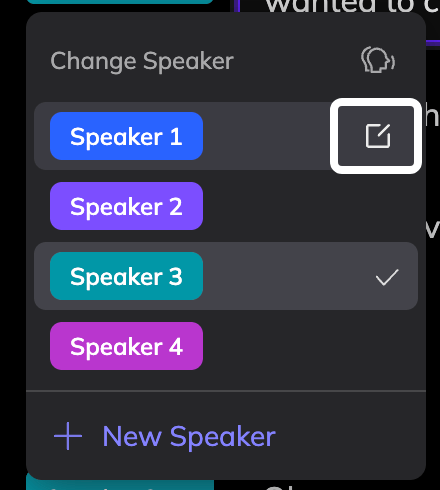
For the segment you want to fix, click the current speaker tag.
Choose the correct speaker from the dropdown, or click **New Speaker** to add a new one.
Once all corrections are made, click **Generate Speech** in the **top right corner** of the Speech section to apply the changes. A new cloned voice will be created for any newly added speakers.
## Simultaneous Speech
If multiple speakers say the same line at the same time, you can assign them to a single segment so their voices are dubbed together. See [Simultaneous Speech](/docs/translate_dub/simultaneous-speech) for details.
## Tips for Managing Speakers
* Rename speakers for clarity (e.g., "Host", "Narrator", "Guest").
## How Speakers Are Detected
Vozo analyzes voice features like tone, pitch, and timing to detect different speakers. While detection is automatic, you can manually correct tags if needed.
## When to Manually Correct Speakers
Update or adjust speaker tags in these cases:
* A single speaker is mistakenly split into multiple tags.
* Multiple speakers are grouped under the same tag.
* A speaker’s voice varies dramatically in emotion (e.g., calm vs. angry). For lines with a distinct emotional tone, create a **new speaker** to help Vozo generate a more appropriate cloned voice.
## How to Add or Edit Speakers
For the segment you want to fix, click the current speaker tag.
Choose the correct speaker from the dropdown, or click **New Speaker** to add a new one.
Once all corrections are made, click **Generate Speech** in the **top right corner** of the Speech section to apply the changes. A new cloned voice will be created for any newly added speakers.
## Simultaneous Speech
If multiple speakers say the same line at the same time, you can assign them to a single segment so their voices are dubbed together. See [Simultaneous Speech](/docs/translate_dub/simultaneous-speech) for details.
## Tips for Managing Speakers
* Rename speakers for clarity (e.g., "Host", "Narrator", "Guest").
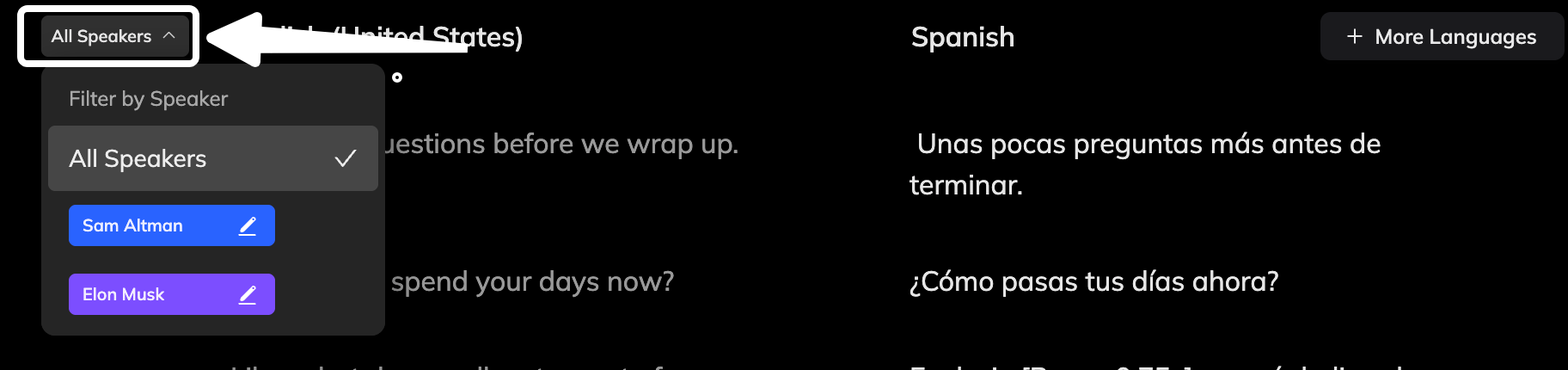
 * Use the **Filter** tool at the top-left of the Speech section to view and edit one speaker’s segments at a time.
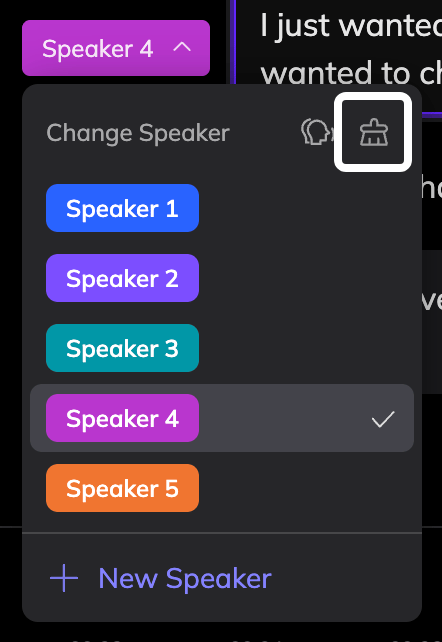
 * Use the **Clear Speaker** icon in the top-right corner of the **Change Speaker** dropdown to remove any speakers that are not assigned to any segment.
 ## FAQ
Double-check that the speaker tags are correct. If everything looks good but the voice still feels off, you can use the [Reclone Voice](/docs/translate_dub/reclone_voice) feature to generate a better result.
Currently, **speaker tags are project-specific**, meaning each project detects and assigns speakers independently.\
However, if you've cloned a voice for a speaker, you can **save it to your Library** and reuse it in other projects for consistent audio performance.
## FAQ
Double-check that the speaker tags are correct. If everything looks good but the voice still feels off, you can use the [Reclone Voice](/docs/translate_dub/reclone_voice) feature to generate a better result.
Currently, **speaker tags are project-specific**, meaning each project detects and assigns speakers independently.\
However, if you've cloned a voice for a speaker, you can **save it to your Library** and reuse it in other projects for consistent audio performance.