> ## Documentation Index
> Fetch the complete documentation index at: https://www.vozo.ai/docs/llms.txt
> Use this file to discover all available pages before exploring further.
# Proofread Transcription
> Learn how to review and correct transcriptions using Vozo Translation Editor.
When you upload a video in **Translate & Dub**, Vozo automatically generates the original transcription based on the audio, and assigns a speaker label to each segment. These transcriptions are the foundation for translation and dubbing.
However, transcription may occasionally include errors — such as misrecognized words or incorrect speaker tags — which can lead to inaccurate translations or mismatched voices. It's important to proofread and correct these issues before continuing.
## Correct the Transcription
### Correct Word Errors
1. Click on the incorrect original text to activate editing.
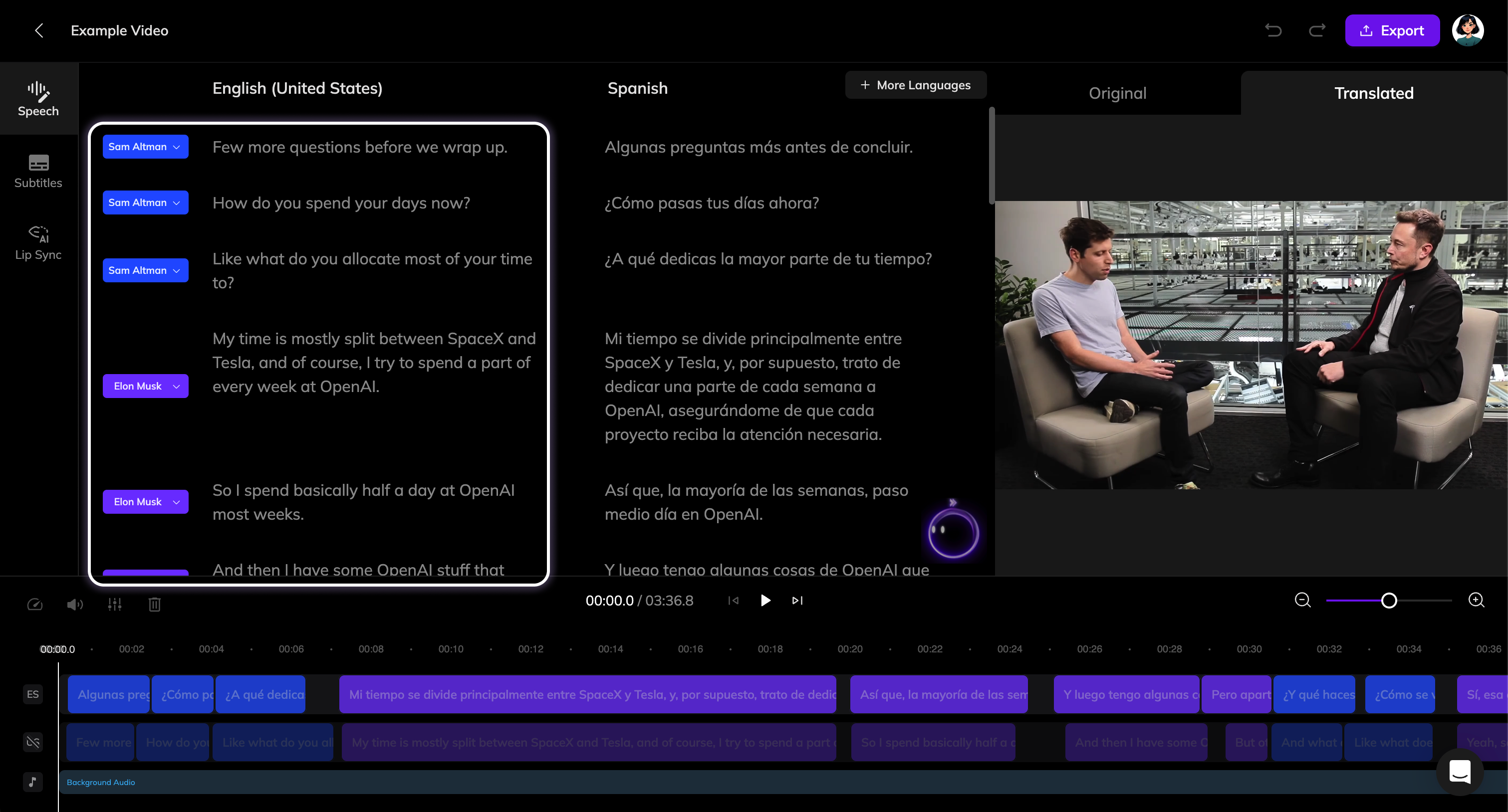 2. Correct the original text, and the **Retranslate** button will appear. Click it to retranslate the segment based on your updates. If multiple segments have errors, you can make all corrections first, then click the **Retranslate** button at the top of the Speech section to batch retranslate all corrected segments.
3. Once you receive the new translations, click **Generate Speech** to refresh the dubbing for these segments.
You can click the **AI Pilot** at the bottom right of the Speech section and input prompts such as “Find Voza and replace it with Vozo in the original script.” to correct translation errors like names or brand terms.
### Add a Segment
> If a sentence wasn’t recognized — for example, due to low volume or speaker overlap — you can manually add it as a new segment.
2. Correct the original text, and the **Retranslate** button will appear. Click it to retranslate the segment based on your updates. If multiple segments have errors, you can make all corrections first, then click the **Retranslate** button at the top of the Speech section to batch retranslate all corrected segments.
3. Once you receive the new translations, click **Generate Speech** to refresh the dubbing for these segments.
You can click the **AI Pilot** at the bottom right of the Speech section and input prompts such as “Find Voza and replace it with Vozo in the original script.” to correct translation errors like names or brand terms.
### Add a Segment
> If a sentence wasn’t recognized — for example, due to low volume or speaker overlap — you can manually add it as a new segment.
 1. Hover between two segments and click the **"+"** button to add a new segment, or press **Enter** at the end of a segment to create one below.
2. Enter the missing original text and click the **Retranslate** button.
### Split a Segment
Sometimes, you may need to split a segment (e.g., if two people's dialogue is recognized as the same speaker).
1. Hover between two segments and click the **"+"** button to add a new segment, or press **Enter** at the end of a segment to create one below.
2. Enter the missing original text and click the **Retranslate** button.
### Split a Segment
Sometimes, you may need to split a segment (e.g., if two people's dialogue is recognized as the same speaker).
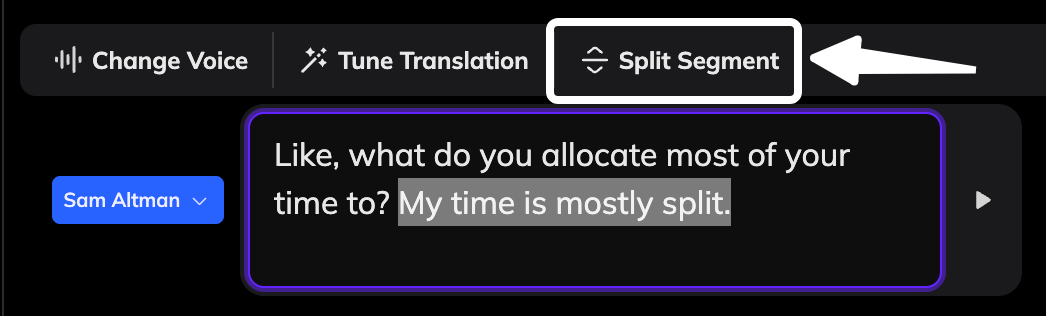 1. Select part of the original sentence you want to split, or place the text cursor at the point where you want to divide it.
2. Click the **Split Segment** button on the toolbar, or press **Enter** in the middle of a segment to split it. (If the original sentence belongs to a different speaker, remember to update the speaker tag accordingly.)
3. Click **Retranslate** at the top to retranslate both segments.
### Merge Segments
You might need to merge segments if a single sentence was incorrectly split into two.
1. Select part of the original sentence you want to split, or place the text cursor at the point where you want to divide it.
2. Click the **Split Segment** button on the toolbar, or press **Enter** in the middle of a segment to split it. (If the original sentence belongs to a different speaker, remember to update the speaker tag accordingly.)
3. Click **Retranslate** at the top to retranslate both segments.
### Merge Segments
You might need to merge segments if a single sentence was incorrectly split into two.
 1. Hover your cursor between the two segments you want to merge and click the **Merge** button that appears, or press **Backspace** at the beginning of a segment to merge it with the one above.
2. After the segments are merged into one, click **Retranslate** to generate a new translation.
## Correct the Speakers
If your video includes multiple speakers, the system will automatically differentiate between them. However, if you notice an error in speaker identification (which may cause the wrong voice to be used during dubbing), you can correct it.
Learn how speakers work and how to edit speaker tags in our [Speaker Guide](/docs/translate_dub/speaker).
1. Hover your cursor between the two segments you want to merge and click the **Merge** button that appears, or press **Backspace** at the beginning of a segment to merge it with the one above.
2. After the segments are merged into one, click **Retranslate** to generate a new translation.
## Correct the Speakers
If your video includes multiple speakers, the system will automatically differentiate between them. However, if you notice an error in speaker identification (which may cause the wrong voice to be used during dubbing), you can correct it.
Learn how speakers work and how to edit speaker tags in our [Speaker Guide](/docs/translate_dub/speaker).