> ## Documentation Index
> Fetch the complete documentation index at: https://www.vozo.ai/docs/llms.txt
> Use this file to discover all available pages before exploring further.
# Edit Translations
> Learn how to edit translations and update dubbing using the Vozo Translation Editor.
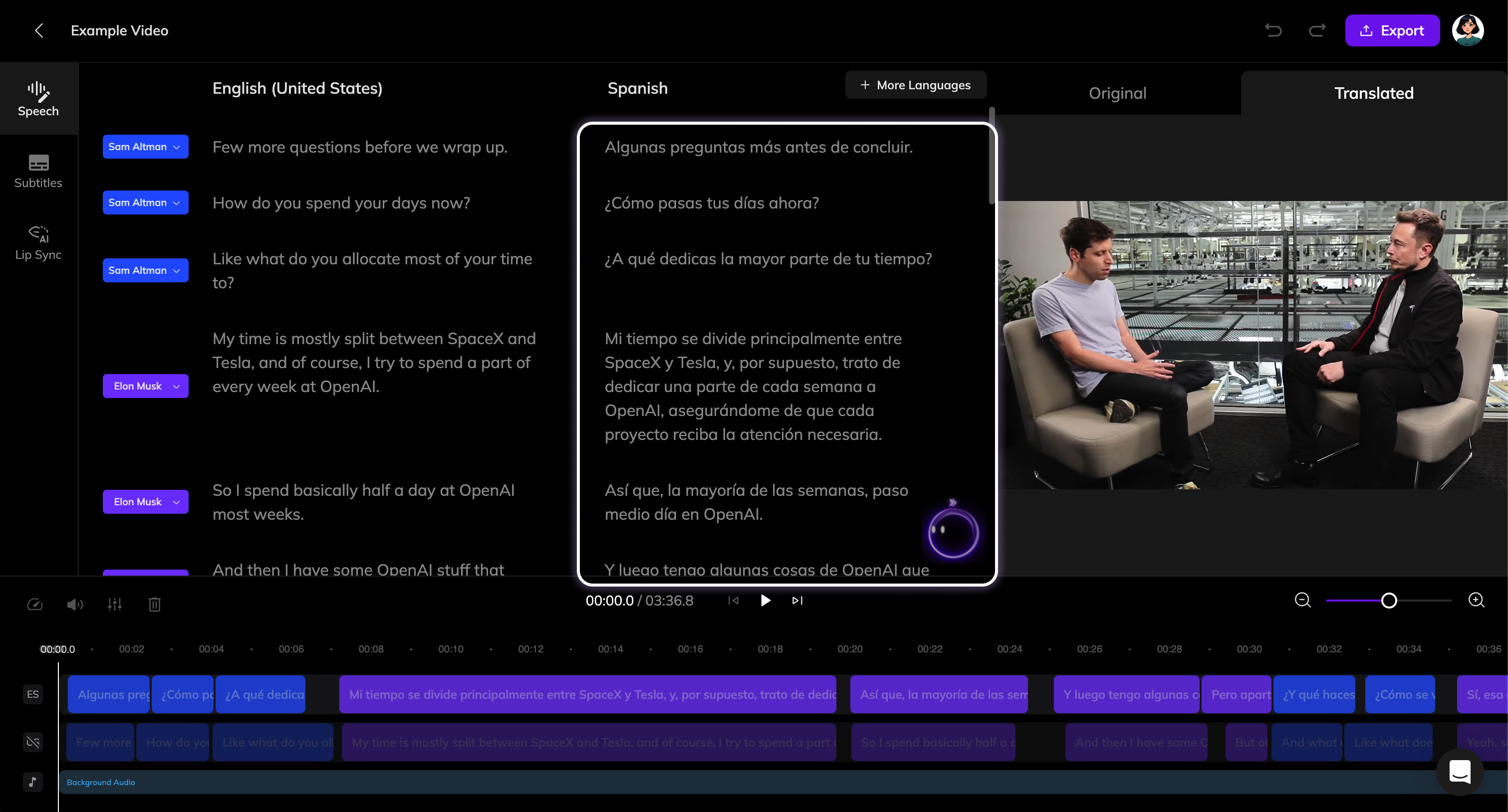 Click on the translated text to activate editing.
Make your changes to the text.
Once the text is modified, the **Generate Speech** button will appear. Click it to generate a new dubbing for the segment.
If you have multiple translations to adjust, you can complete all edits first and then click the **Generate Speech** button at the top of the Speech section to batch update the dubbing for all modified segments.
Click on the translated text to activate editing.
Make your changes to the text.
Once the text is modified, the **Generate Speech** button will appear. Click it to generate a new dubbing for the segment.
If you have multiple translations to adjust, you can complete all edits first and then click the **Generate Speech** button at the top of the Speech section to batch update the dubbing for all modified segments.