> ## Documentation Index
> Fetch the complete documentation index at: https://www.vozo.ai/docs/llms.txt
> Use this file to discover all available pages before exploring further.
# Get Started
> Learn how to use Long Video to Shorts to automatically extract highlight moments and generate multiple viral short videos.
## Upload Your Video
You can upload your video in two ways:
* Paste a video link.
* Upload a video file.
Only English talking videos are supported.
## Configure Your Project
### Preferred Shorts Length
Select your desired lengths for the short videos. You can choose multiple options or select **Auto** to let the system decide.
### Pick a Template
Choose your preferred subtitle style for the shorts.
### Select Time Range (Optional)
Enable this option if you want to limit highlight extraction to a specific part of the video. This can save points, as usage is based on the original video’s duration.
Once configured, click **Start Clipping** to begin.
## Preview and Export Shorts
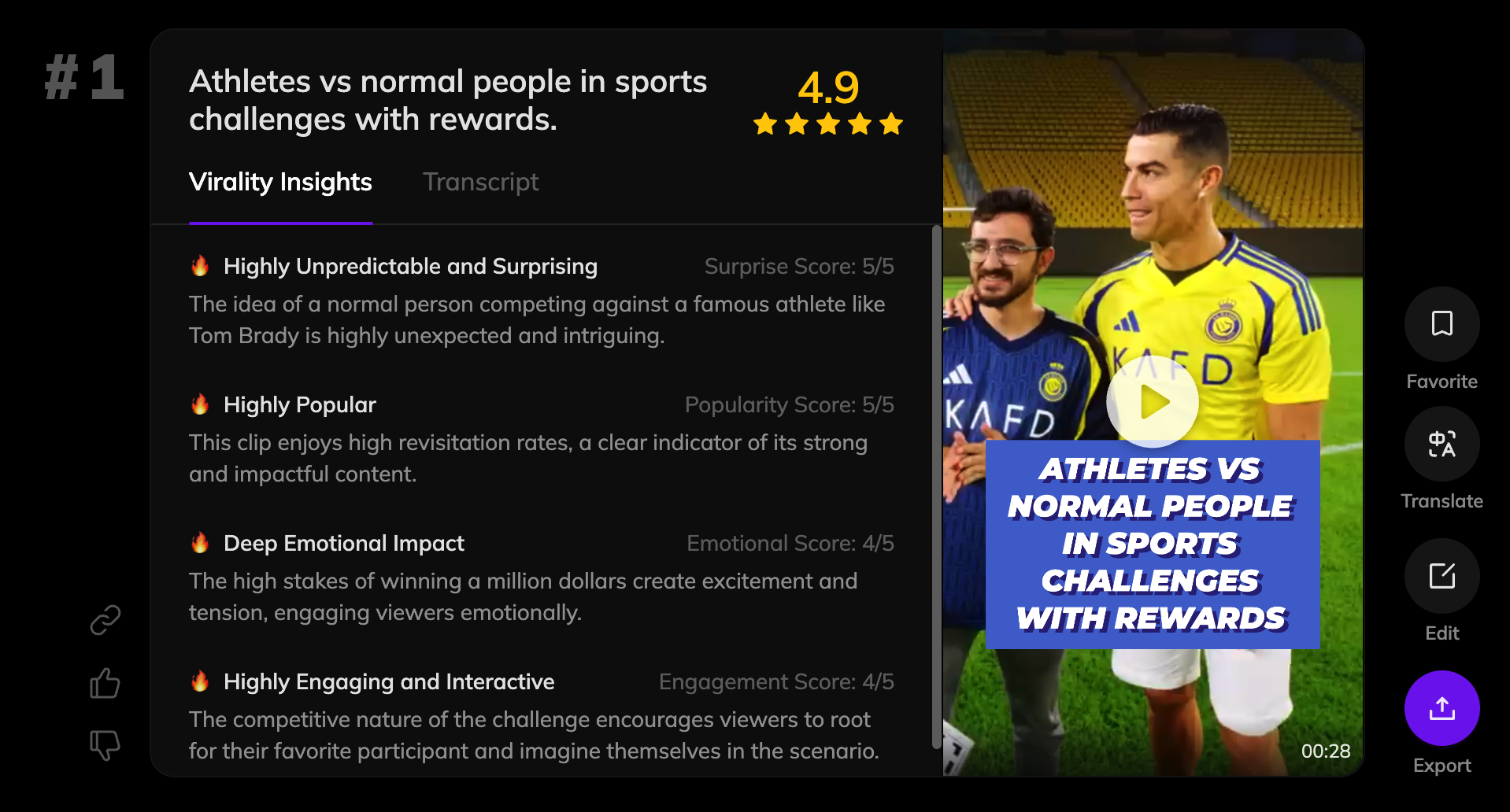
Once generation is complete, you'll receive multiple Shorts along with **Virality Score** and **Insights**.
* **Preview**: Watch each short and review its transcript and virality metrics.
* **Mark as Favorite**: Click the star icon to save the ones you like.
 ## Download Shorts
1. Click the **Export** button on a short.
2. The short will appear in the export queue.
3. Once ready, click to download the video.
## Advanced Features
### Edit Shorts
Click **Edit** to modify clip range, subtitle text, or style.
## Download Shorts
1. Click the **Export** button on a short.
2. The short will appear in the export queue.
3. Once ready, click to download the video.
## Advanced Features
### Edit Shorts
Click **Edit** to modify clip range, subtitle text, or style.
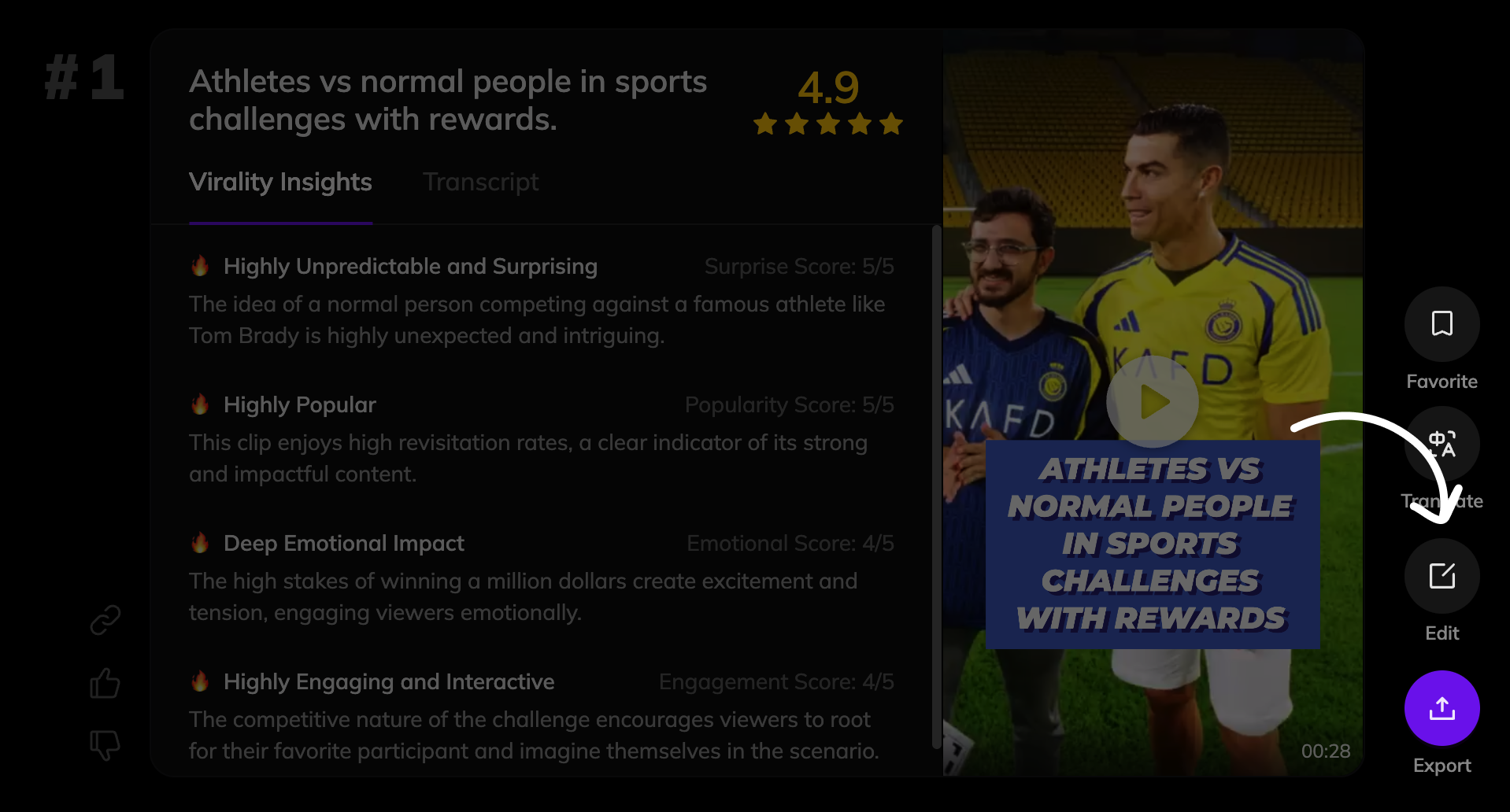 ### Translate Shorts
Click **Translate** to convert the video into another language and dub it using the original voice.
## FAQ
Please refer to the [Points Usage for AI Tools](/docs/common/tools-points-rules) page for detailed pricing rules.
### Translate Shorts
Click **Translate** to convert the video into another language and dub it using the original voice.
## FAQ
Please refer to the [Points Usage for AI Tools](/docs/common/tools-points-rules) page for detailed pricing rules.