> ## Documentation Index
> Fetch the complete documentation index at: https://www.vozo.ai/docs/llms.txt
> Use this file to discover all available pages before exploring further.
# Edit Shorts
> Learn how to trim, edit captions, pick templates, and adjust styles when editing your generated Shorts.
On the Shorts List page, select the short video you want to edit and click the **Edit** button on the right to enter the Shorts editor.
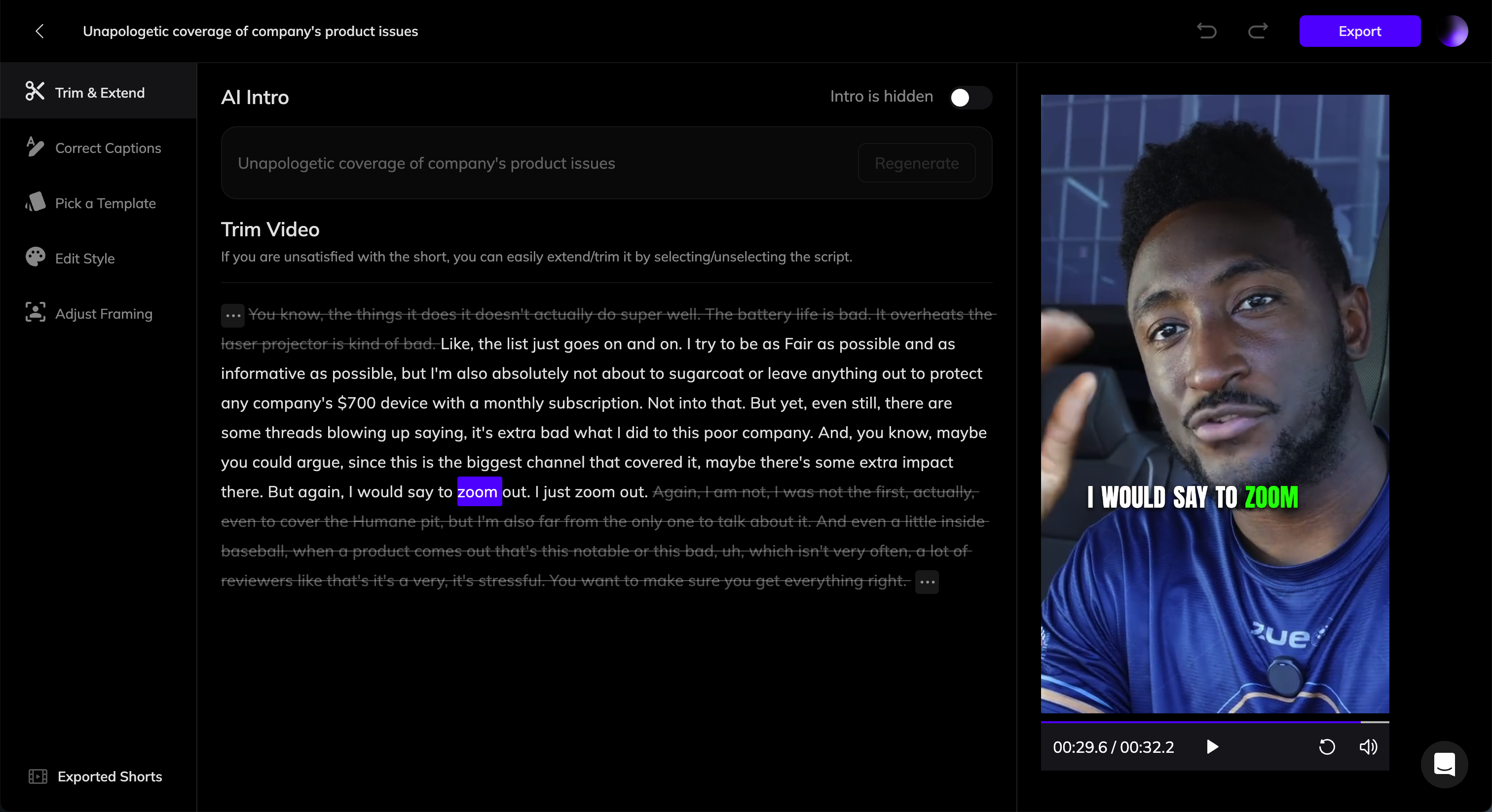 ## Trim & Extend
Click on the **Trim & Extend** tab in the sidebar to edit the clip's intro and video range.
### AI Intro
* **Enable AI Intro**: If enabled, an AI-generated intro will appear in the first 3 seconds of the video.
* **Regenerate or Edit Intro**: If you're not satisfied with the generated intro, click the **Regenerate** button to let AI generate a new one, or manually edit the text.
* **Disable Intro**: If you don't need an intro, toggle off the switch.
### Trim Video
In this section, you’ll see the **transcript of the original video**. The highlighted parts correspond to the clip's included segments.
* **To Trim a Segment**: Select the text corresponding to the part you want to remove, then click the **Trim** button.
* **To Extend a Segment**: Select the crossed-out text you want to include and click the **Extend** button.
The selected segments can be non-contiguous. For example, if there is an unnecessary sentence in the middle that you want to remove, you can trim it while keeping the content before and after intact.
## Correct Captions
The captions are automatically generated by AI. If you notice any errors, click the **Correct Captions** tab on the left sidebar. From there, you can edit and correct the caption text.
## Pick a Template
Vozo offers several preset templates for you to choose from.
A template includes the following elements:
* **Caption Style and Position**
* **Intro Style and Position**
* **Reframing Layout**
* **Logo Image and Position**
### Create New Template
If you’ve customized styles in the **Edit Style** section, you can save them as a template by clicking **Create New Template**. This allows you to reuse the same style for other videos.
## Edit Style
In this section, you can customize various style elements, including:
### Captions
Choose a preset style or customize options like font, color, and animations.
### Intro
Enable this to display an intro for the first 3 seconds (captions won't appear during this time).
Currently, intro styles can only be selected from presets.
### Branding
#### Reframing Layout
* **Auto**: Automatically centers the main subject of the original video in the vertical frame.
* **Fit**: Fits the entire original frame into the layout.
#### Logo
Upload your logo, watermark, or overlay to place it on the video.
## Adjust Framing
Framing behavior depends on the **Reframing Layout** setting.
* If **Fit** is applied, you can adjust the position of the fit frame here, and the change will apply to the entire video.
* If **Auto** is applied, Vozo divides the video into segments based on scene changes. You can adjust the layout and framing for each segment individually. Simply play the video, and when it reaches the next segment, make your adjustments.
## Export and Download
After completing all edits, click the **Export** button in the top-right corner. Once the export process finishes, you can download the video.
## Trim & Extend
Click on the **Trim & Extend** tab in the sidebar to edit the clip's intro and video range.
### AI Intro
* **Enable AI Intro**: If enabled, an AI-generated intro will appear in the first 3 seconds of the video.
* **Regenerate or Edit Intro**: If you're not satisfied with the generated intro, click the **Regenerate** button to let AI generate a new one, or manually edit the text.
* **Disable Intro**: If you don't need an intro, toggle off the switch.
### Trim Video
In this section, you’ll see the **transcript of the original video**. The highlighted parts correspond to the clip's included segments.
* **To Trim a Segment**: Select the text corresponding to the part you want to remove, then click the **Trim** button.
* **To Extend a Segment**: Select the crossed-out text you want to include and click the **Extend** button.
The selected segments can be non-contiguous. For example, if there is an unnecessary sentence in the middle that you want to remove, you can trim it while keeping the content before and after intact.
## Correct Captions
The captions are automatically generated by AI. If you notice any errors, click the **Correct Captions** tab on the left sidebar. From there, you can edit and correct the caption text.
## Pick a Template
Vozo offers several preset templates for you to choose from.
A template includes the following elements:
* **Caption Style and Position**
* **Intro Style and Position**
* **Reframing Layout**
* **Logo Image and Position**
### Create New Template
If you’ve customized styles in the **Edit Style** section, you can save them as a template by clicking **Create New Template**. This allows you to reuse the same style for other videos.
## Edit Style
In this section, you can customize various style elements, including:
### Captions
Choose a preset style or customize options like font, color, and animations.
### Intro
Enable this to display an intro for the first 3 seconds (captions won't appear during this time).
Currently, intro styles can only be selected from presets.
### Branding
#### Reframing Layout
* **Auto**: Automatically centers the main subject of the original video in the vertical frame.
* **Fit**: Fits the entire original frame into the layout.
#### Logo
Upload your logo, watermark, or overlay to place it on the video.
## Adjust Framing
Framing behavior depends on the **Reframing Layout** setting.
* If **Fit** is applied, you can adjust the position of the fit frame here, and the change will apply to the entire video.
* If **Auto** is applied, Vozo divides the video into segments based on scene changes. You can adjust the layout and framing for each segment individually. Simply play the video, and when it reaches the next segment, make your adjustments.
## Export and Download
After completing all edits, click the **Export** button in the top-right corner. Once the export process finishes, you can download the video.