> ## Documentation Index
> Fetch the complete documentation index at: https://www.vozo.ai/docs/llms.txt
> Use this file to discover all available pages before exploring further.
# Lip Sync Editor
> Use the Lip Sync editor to mark the correct speaker and achieve perfect lip sync.
Vozo automatically analyzes your video and applies lip sync to the **detected speaking face**, which is especially useful for multi-person scenes. After processing, you can edit speaker markings in the editor to specify which face should or shouldn’t be synced during specific time segments.
## Show Original Video & Mark Speaker
Toggle the **Check & Edit Lip Sync** switch at the bottom-left corner of the editor to view a side-by-side comparison:
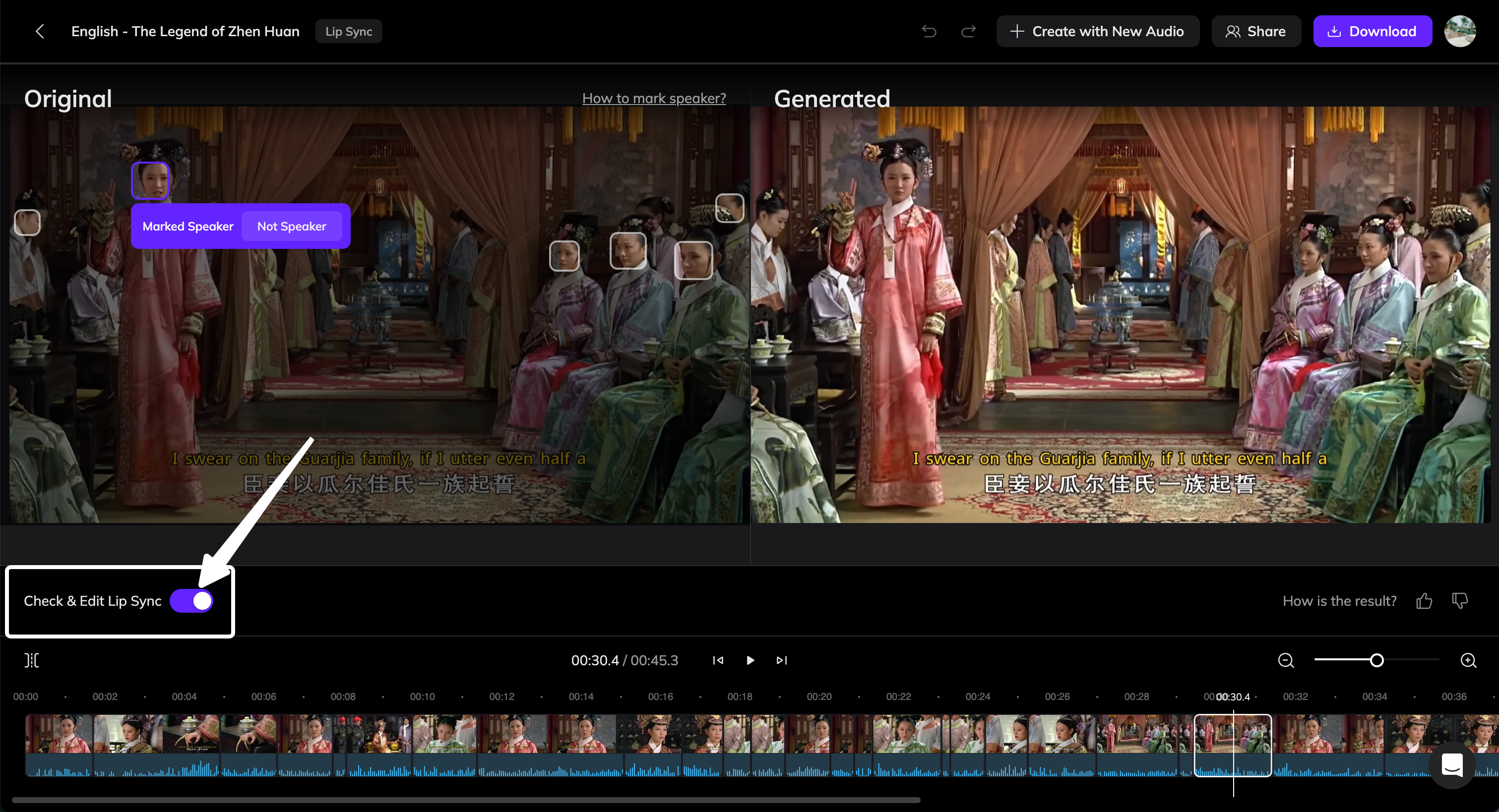 * Left: the **original video**
* Right: the **generated video**
In the original video preview, all detected faces will be labeled:
* **Marked Speaker** — this face is identified as the current speaker and has been synced to the audio.
* **Not Speaker** — this face is not identified as the speaker and remains in its original state without lip sync.
## How to Mark the Speaker
* If the speaking face was not correctly recognized as the speaker, click **Mark as Speaker** button.
* If no one in the frame is actually speaking (for example, during a voiceover or narration), click **Not Speaker** on the incorrectly marked face.
Click **Regenerate x Edited Clips** to update all segments with modified markings.
### Mark Specific Time Segments
Vozo automatically splits your video into multiple timeline clips.\
If the part you want to edit isn’t already separated, you can split it manually:
Drag the playhead to the time point you want to isolate.
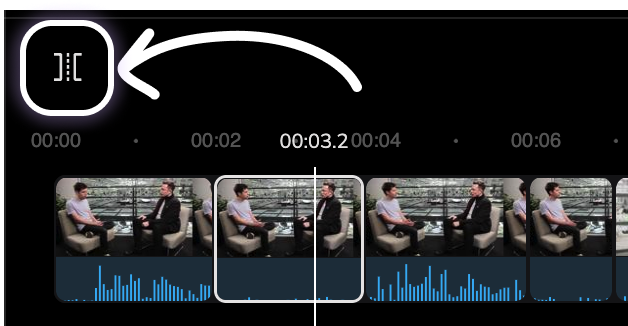
Click the **Split** button in the top-left corner of the timeline to create a new clip.
* Left: the **original video**
* Right: the **generated video**
In the original video preview, all detected faces will be labeled:
* **Marked Speaker** — this face is identified as the current speaker and has been synced to the audio.
* **Not Speaker** — this face is not identified as the speaker and remains in its original state without lip sync.
## How to Mark the Speaker
* If the speaking face was not correctly recognized as the speaker, click **Mark as Speaker** button.
* If no one in the frame is actually speaking (for example, during a voiceover or narration), click **Not Speaker** on the incorrectly marked face.
Click **Regenerate x Edited Clips** to update all segments with modified markings.
### Mark Specific Time Segments
Vozo automatically splits your video into multiple timeline clips.\
If the part you want to edit isn’t already separated, you can split it manually:
Drag the playhead to the time point you want to isolate.
Click the **Split** button in the top-left corner of the timeline to create a new clip.
 Adjust the speaker marking for the new segment as needed.
## Common Scenarios and Solutions
When multiple faces appear in a scene, Vozo might apply lip sync to the wrong one.
**How to fix:**
1. In the original video preview, click the correct face and choose **Mark as Speaker**.
The incorrect face will automatically be unmarked.
2. Click **Regenerate x Edited Clips** to update the result.
If the audio comes from an off-screen narrator or background voice, the system may still apply lip sync to a visible face.
**How to fix:**
1. Select the synced face and click **Not Speaker**.
2. Click **Regenerate x Edited Clips** to remove lip sync and restore the original mouth motion.
Sometimes, lip sync can make the mouth appear over objects like microphones or hands.
**How to fix:**
1. Click **Split** to isolate that segment on the timeline.
2. Select the segment and click **Not Speaker**.
3. Click **Regenerate x Edited Clips** to remove lip sync.
This fix is best for short, temporary obstructions.\
If the face is frequently covered, it may not be suitable for lip syncing.
Lip sync may generate unwanted mouth movement when the speaker is silent.
**How to fix:**
1. Click **Split** to isolate the part where the issue occurs.
2. Click **Not Speaker** for the face in that segment.
3. Click **Regenerate x Edited Clips** to apply the update.
During fade-in or fade-out transitions, lip sync may create distorted facial effects.
**How to fix:**
1. Click **Split** to separate the transition from the rest of the video.
2. Click **Not Speaker** for the face in that segment.
3. Click **Regenerate x Edited Clips** to finalize.
Removing sync during transitions helps maintain a more natural look between scenes.
Adjust the speaker marking for the new segment as needed.
## Common Scenarios and Solutions
When multiple faces appear in a scene, Vozo might apply lip sync to the wrong one.
**How to fix:**
1. In the original video preview, click the correct face and choose **Mark as Speaker**.
The incorrect face will automatically be unmarked.
2. Click **Regenerate x Edited Clips** to update the result.
If the audio comes from an off-screen narrator or background voice, the system may still apply lip sync to a visible face.
**How to fix:**
1. Select the synced face and click **Not Speaker**.
2. Click **Regenerate x Edited Clips** to remove lip sync and restore the original mouth motion.
Sometimes, lip sync can make the mouth appear over objects like microphones or hands.
**How to fix:**
1. Click **Split** to isolate that segment on the timeline.
2. Select the segment and click **Not Speaker**.
3. Click **Regenerate x Edited Clips** to remove lip sync.
This fix is best for short, temporary obstructions.\
If the face is frequently covered, it may not be suitable for lip syncing.
Lip sync may generate unwanted mouth movement when the speaker is silent.
**How to fix:**
1. Click **Split** to isolate the part where the issue occurs.
2. Click **Not Speaker** for the face in that segment.
3. Click **Regenerate x Edited Clips** to apply the update.
During fade-in or fade-out transitions, lip sync may create distorted facial effects.
**How to fix:**
1. Click **Split** to separate the transition from the rest of the video.
2. Click **Not Speaker** for the face in that segment.
3. Click **Regenerate x Edited Clips** to finalize.
Removing sync during transitions helps maintain a more natural look between scenes.